From Chaos to Order.
In One Click.
The nesting layout plugin for Adobe Illustrator that automates vector and raster packing. Arrange hundreds of objects and optimize material usage instantly.
One-Time Purchase, Lifetime License.
Watch the video demonstration
of Dense Packing (True-Shape Nesting)
Four Professional Tools in One Plugin




Unlock Your Productivity

True-Shape Nesting
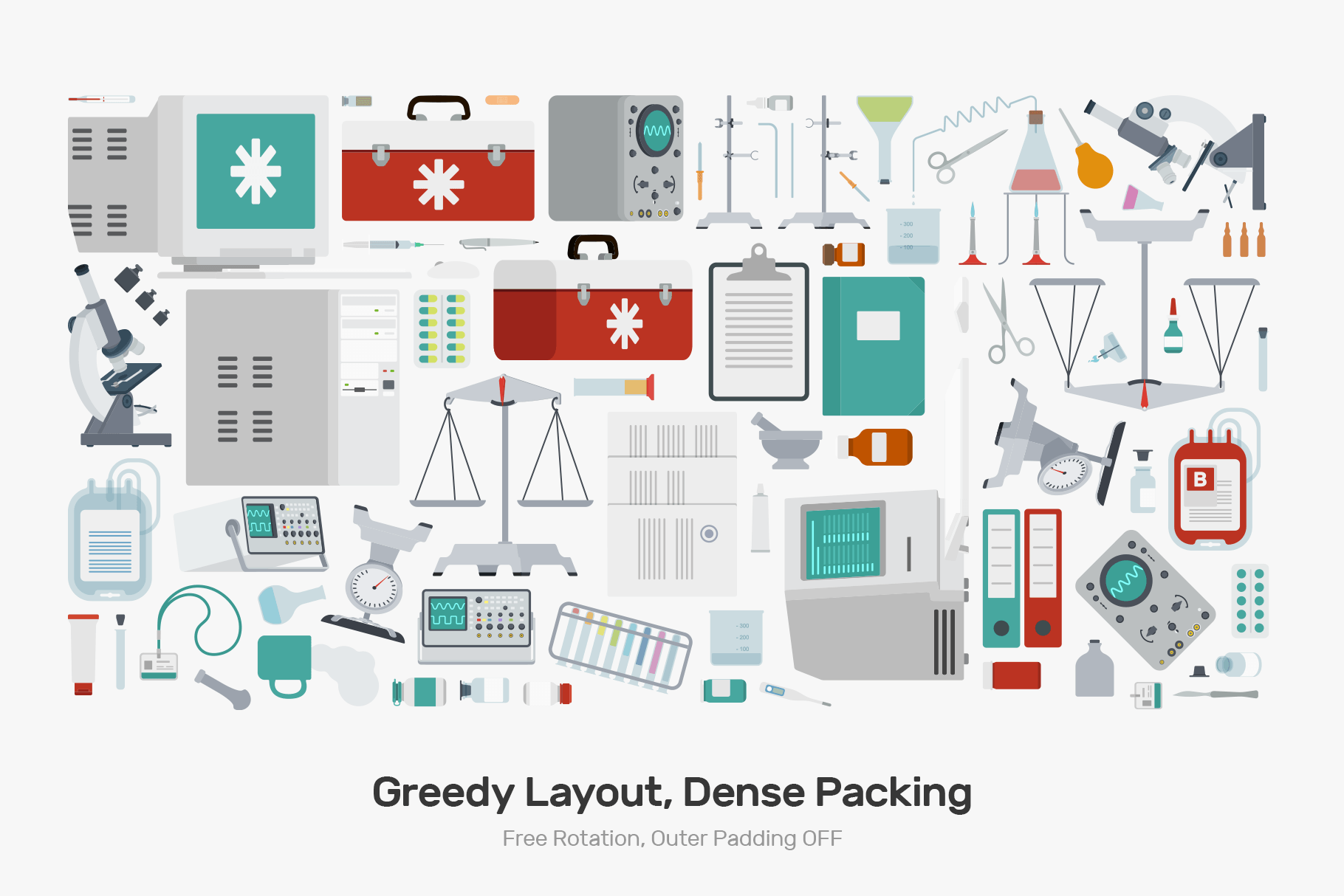
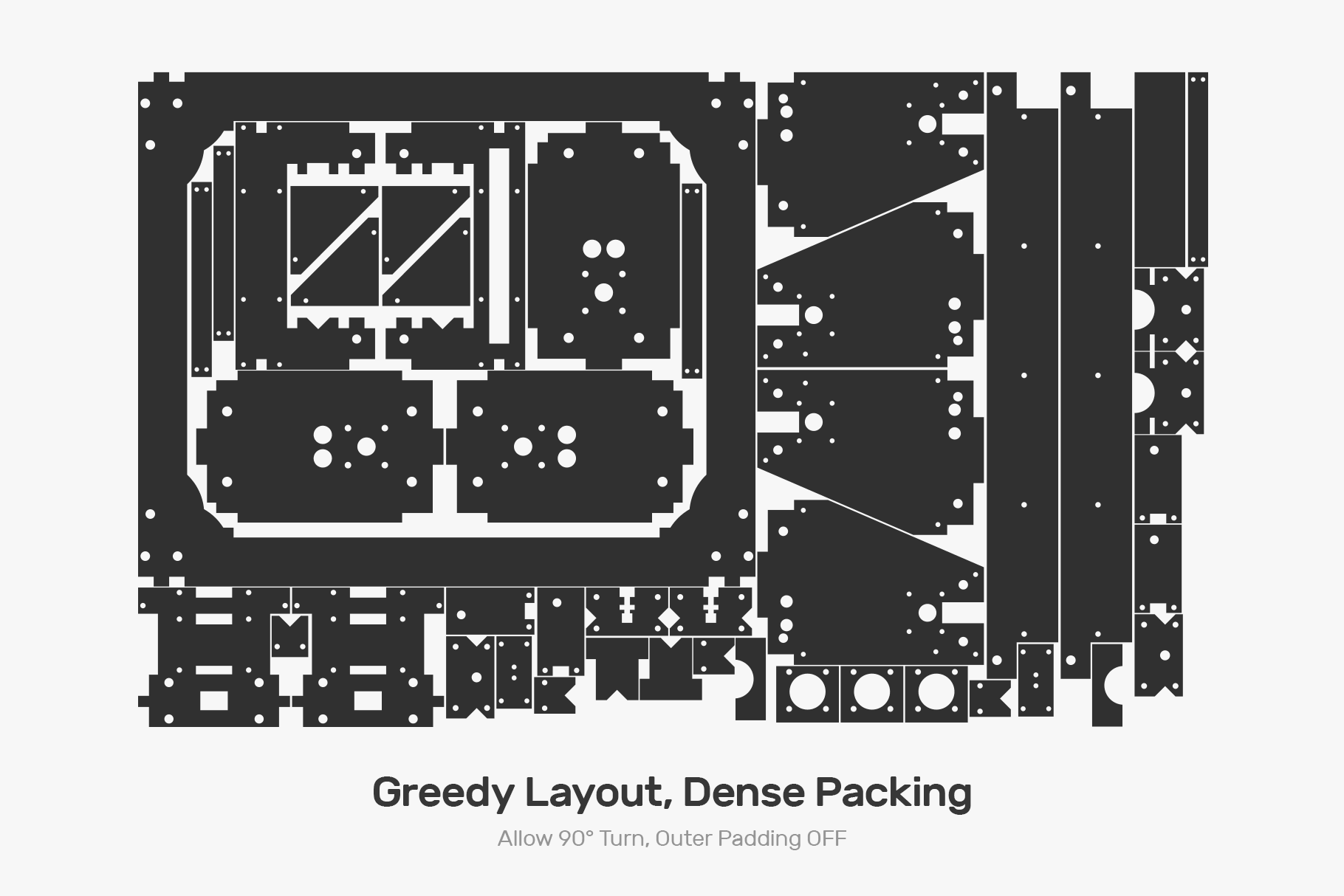
Optimize material usage for print shops, CNC/laser cutting. The nesting algorithm uses vector path analysis to pack objects based on their actual contours and internal cavities.

Vector & Raster Support
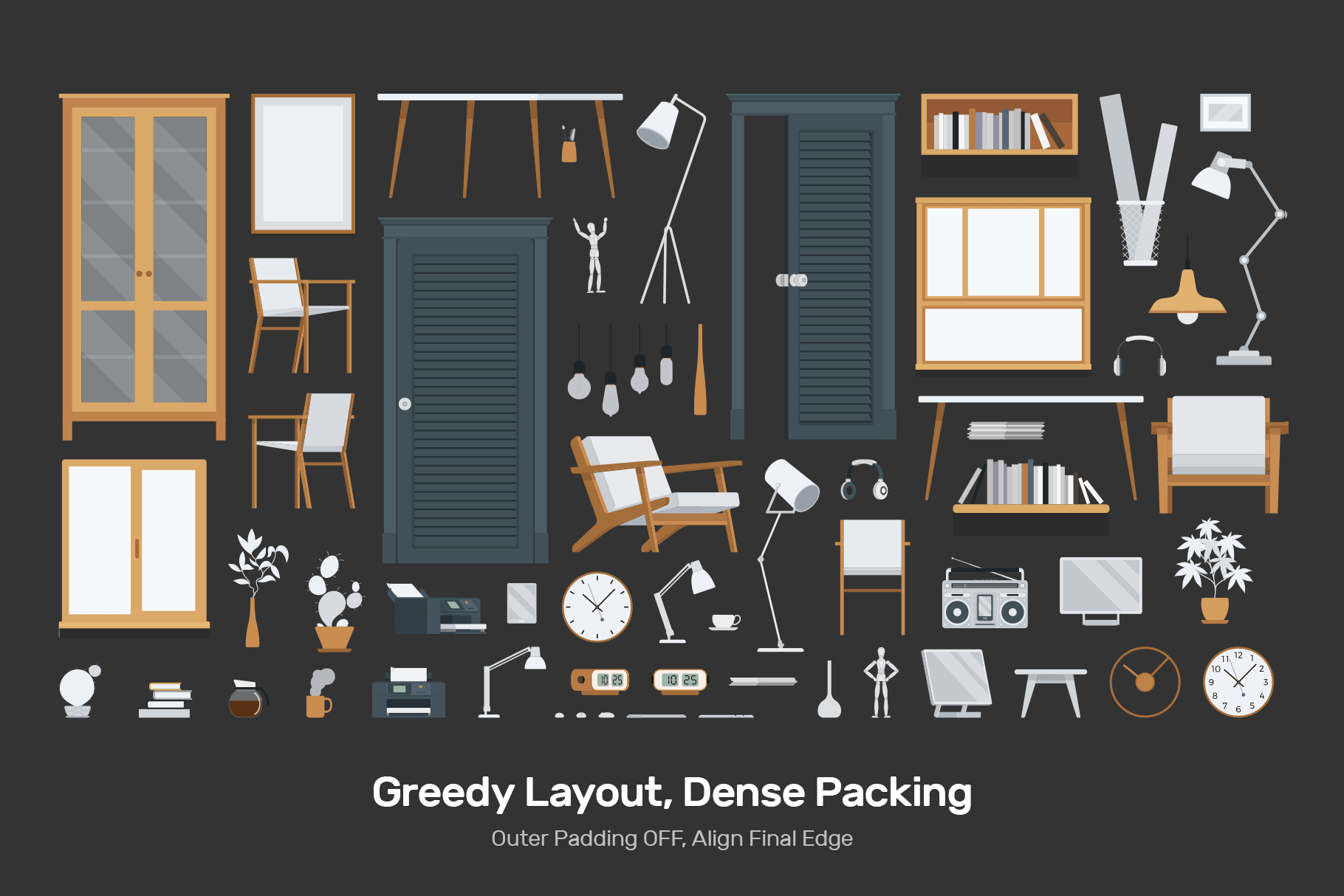
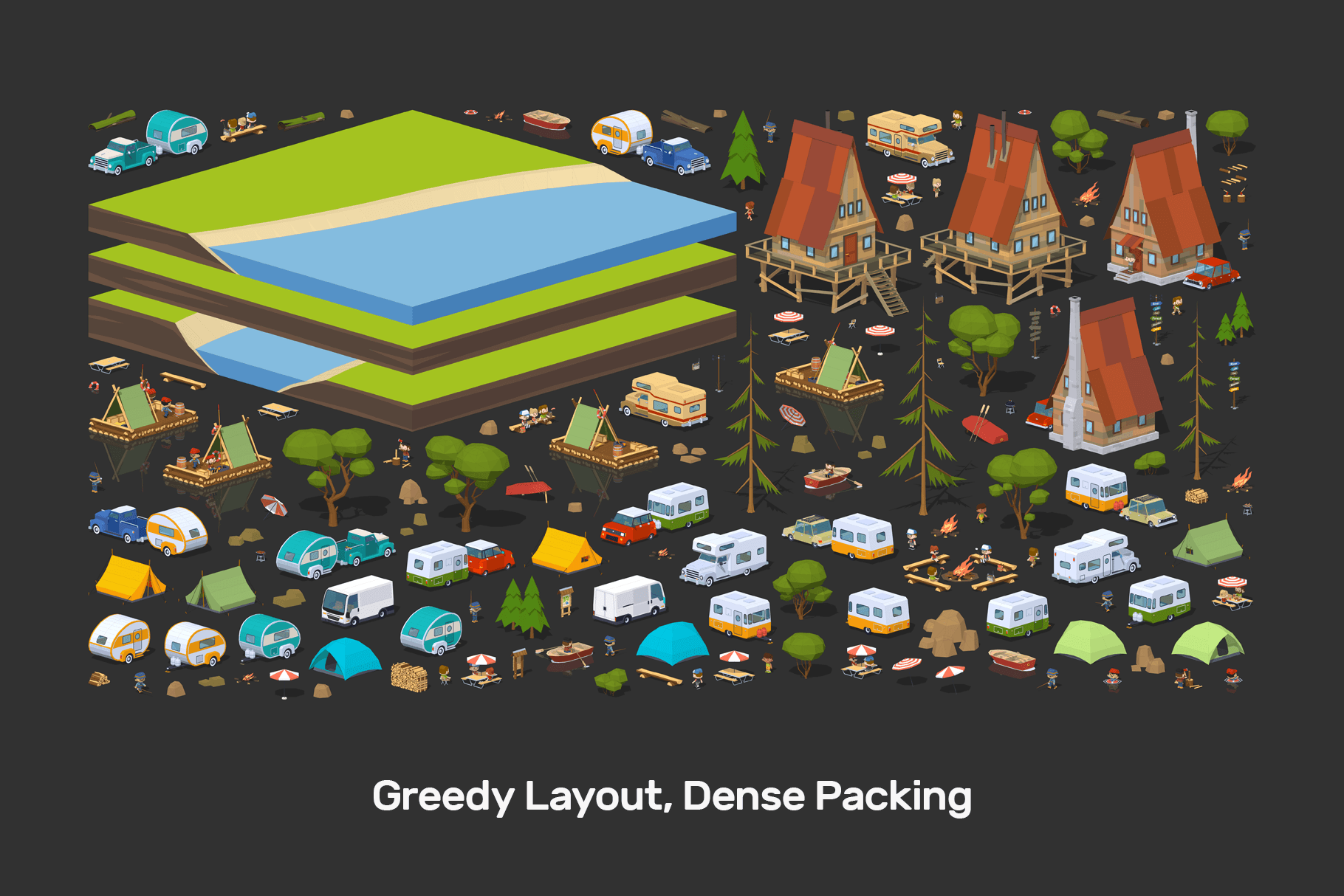
Arrange basic shapes, typography, and embedded images. The plugin evaluates standard bounding boxes and packs raster elements masked within vector clipping paths.

Layer Structure Retention
Your file organization remains intact. Cut lines, spot colors, QR codes, and guides stay on their original layers after the layout process is complete, ensuring production-ready files.

Direction & Gravity Controls
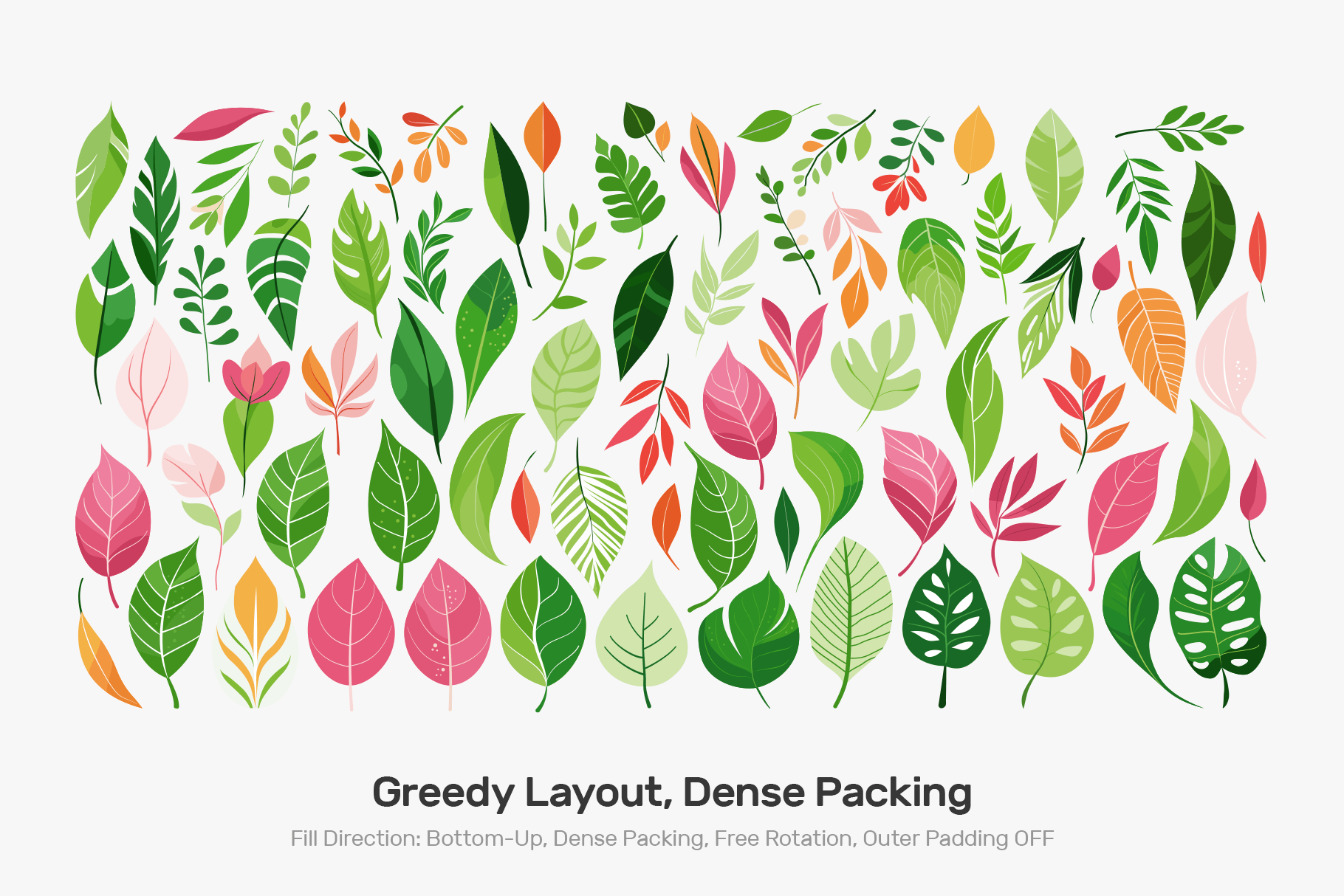
Define how objects settle into the layout. Choose between top-down or bottom-up filling, and apply X, Y, or dual X/Y gravity vectors to strictly control the nesting direction.

Custom Shape Containers
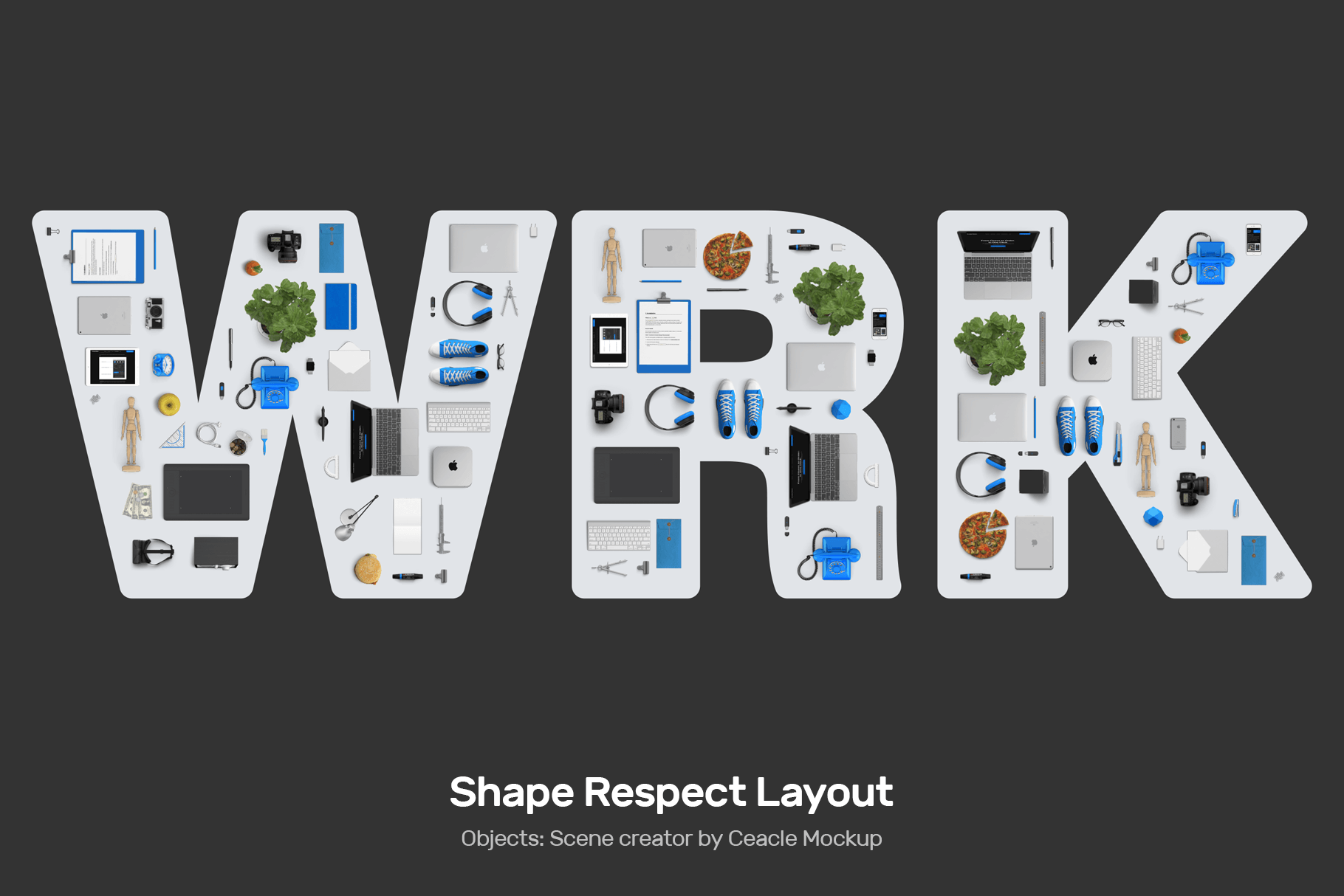
Select any arbitrary shape to act as your container. A secure session workflow protects your original artwork while objects automatically fill the container's geometry.

Single Item Fill Mode
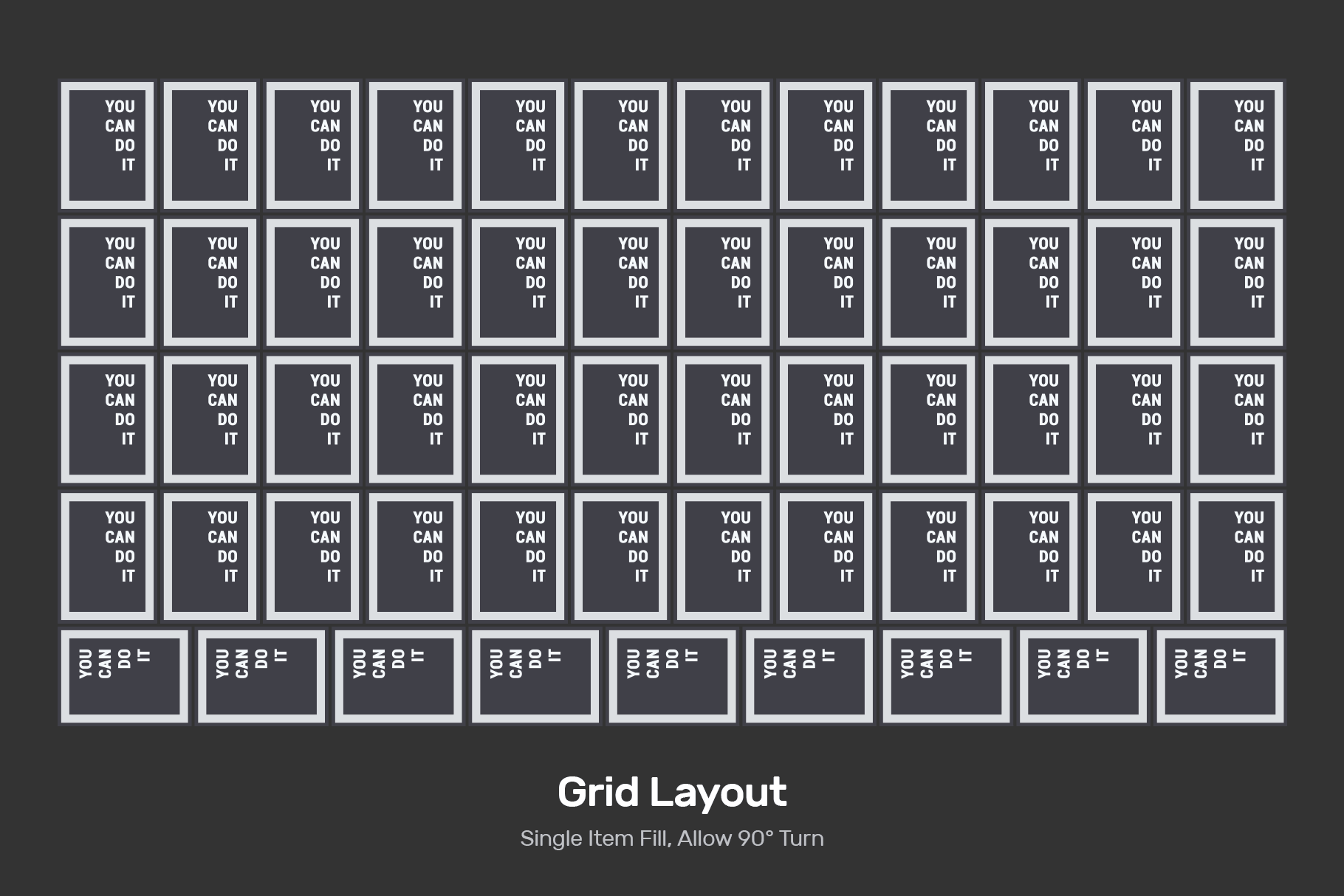
Select one object and automatically fill the entire container with its copies. Adjust gravity vectors and fill directions to maximize the number of items placed in a single run.

Universal Measurement Units
Work in the metrics you prefer. Arrange Master seamlessly synchronizes with your active Illustrator document, supporting millimeters, centimeters, inches, points, and pixels.

Advanced Rotation Options
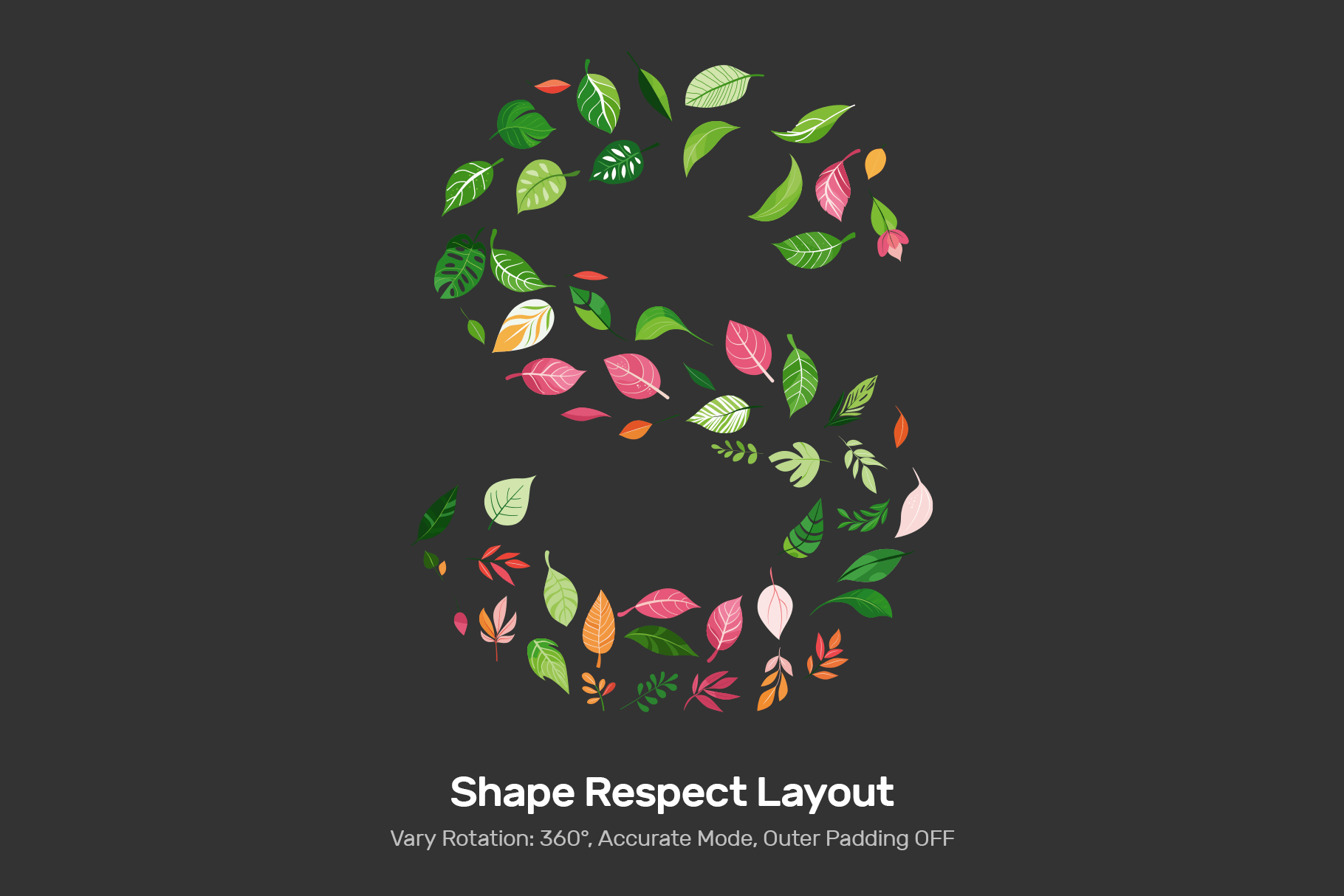
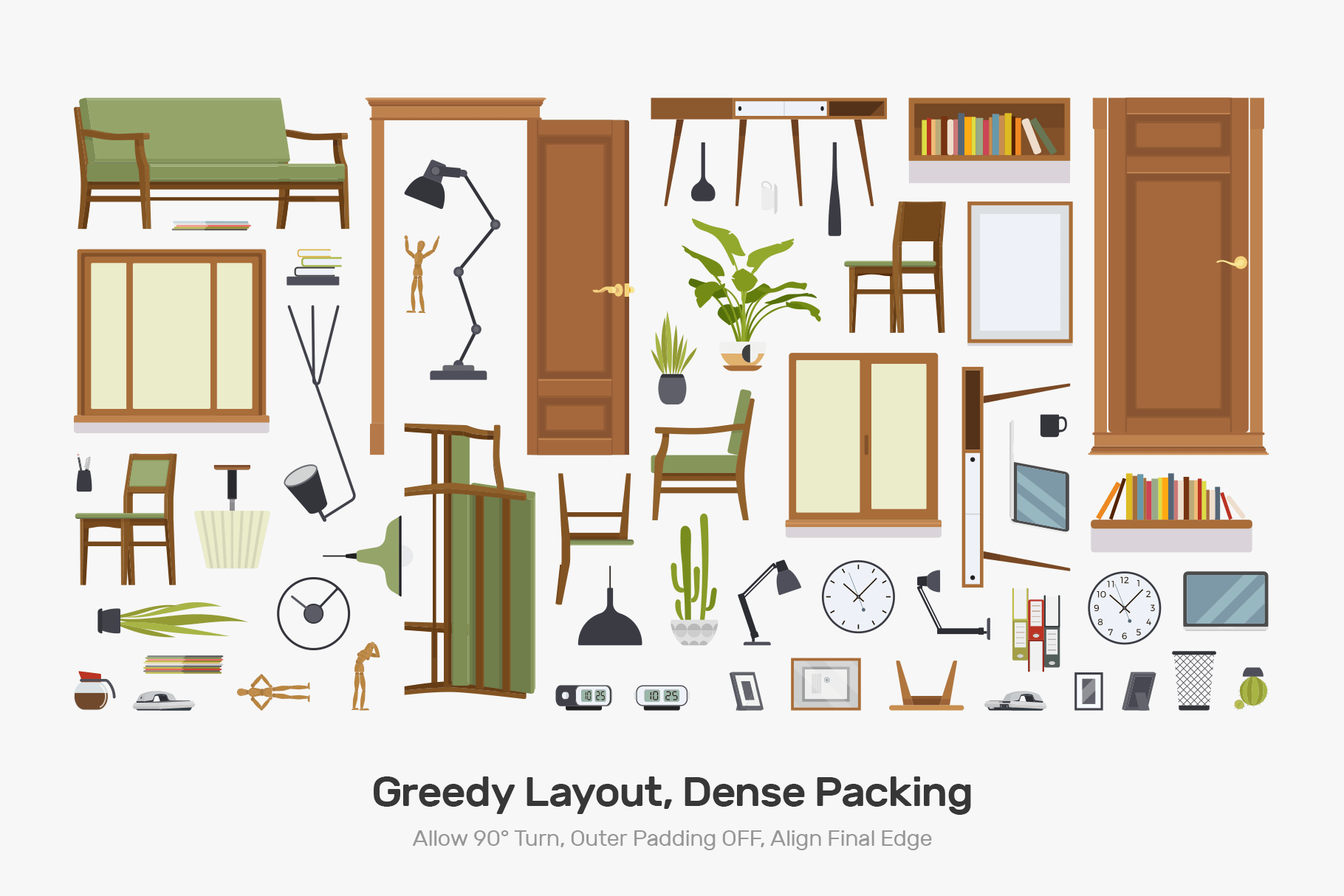
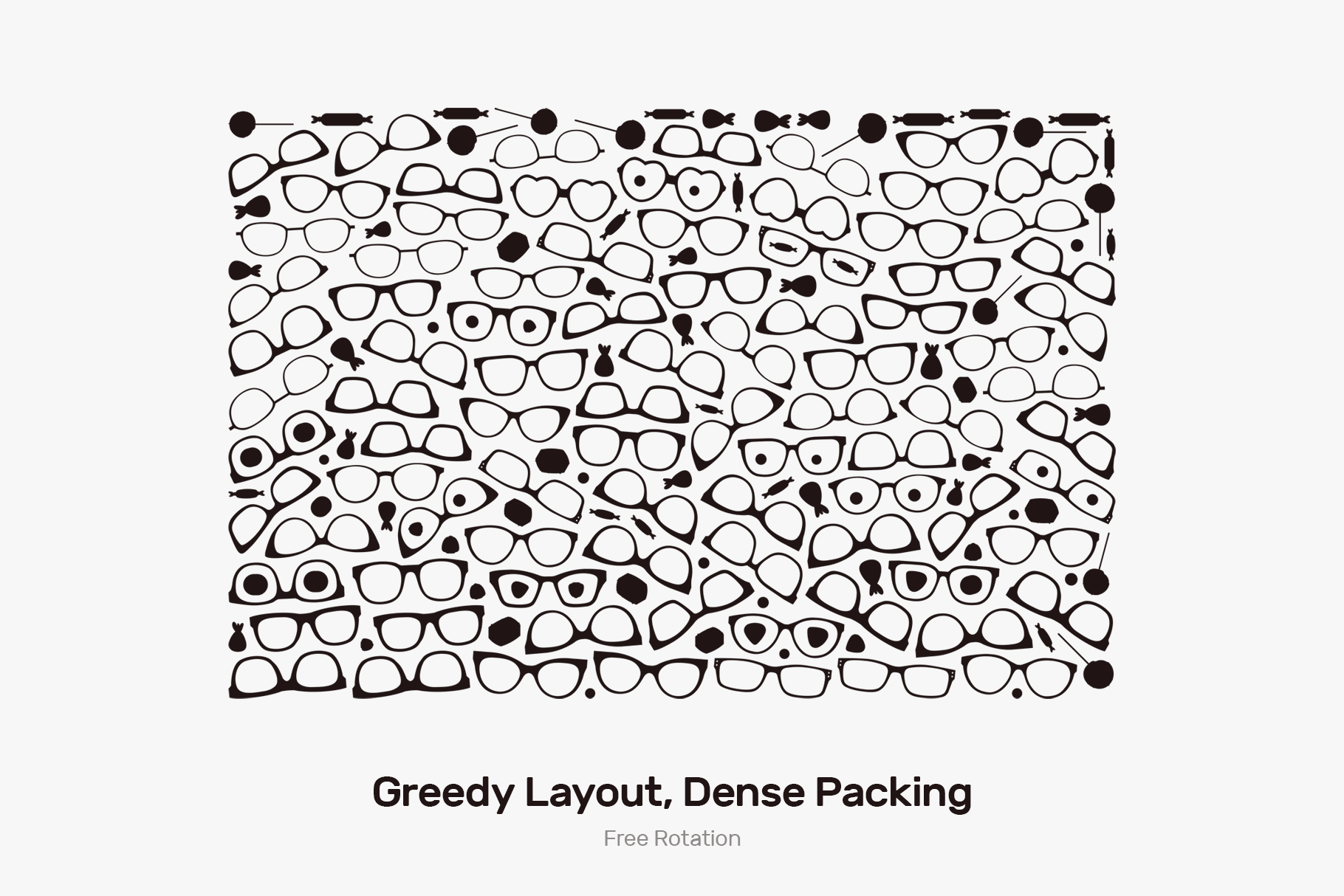
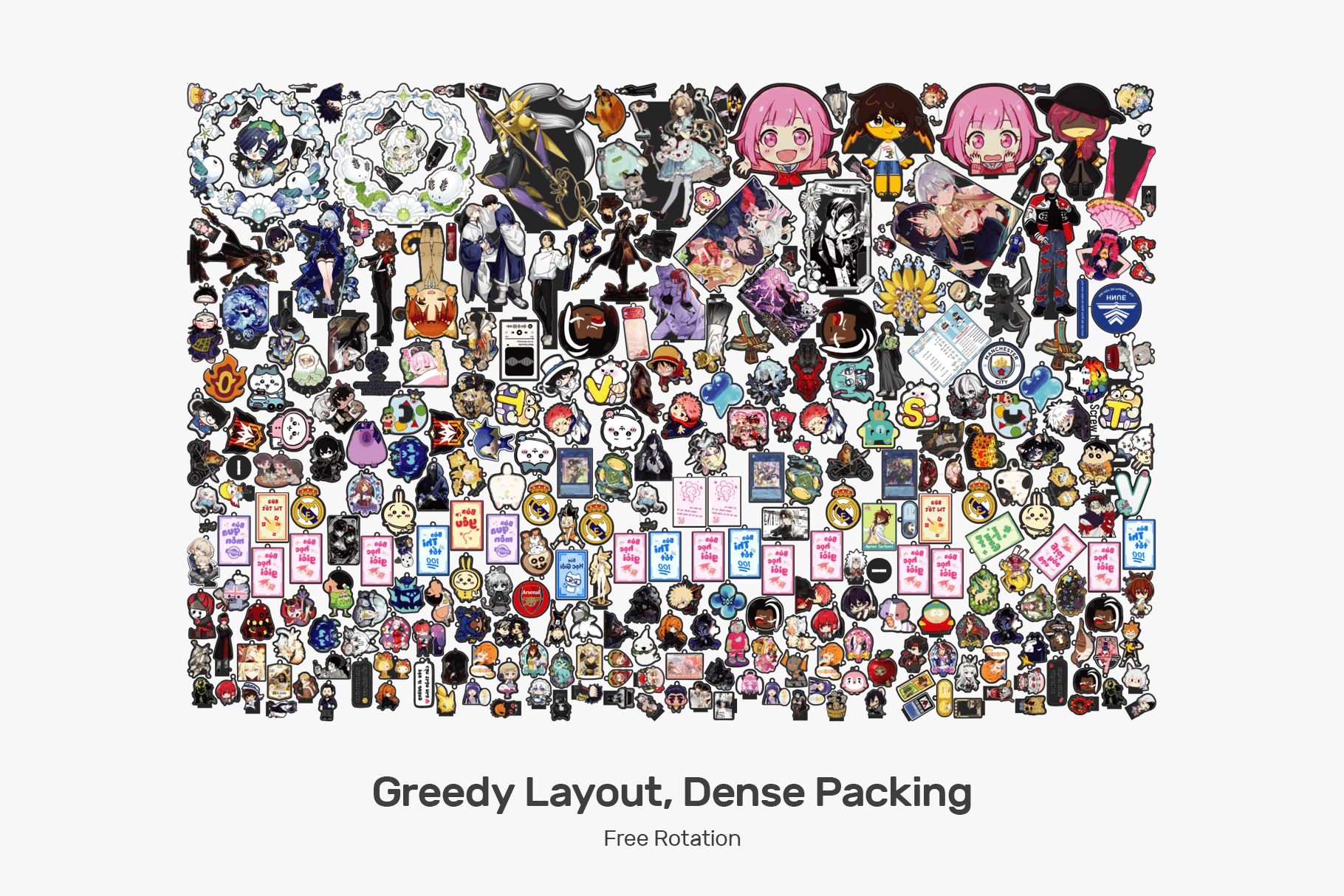
Adapt to your material constraints. Use 90° orthogonal turns for geometric shapes, 180° flips for textile grain alignment, or 360° free rotation for complex organic objects.

Lifetime License & Compatibility
A professional Adobe Illustrator plugin for macOS and Windows (CC 2018+). Available globally as a one-time purchase with no recurring subscriptions.
User Interface
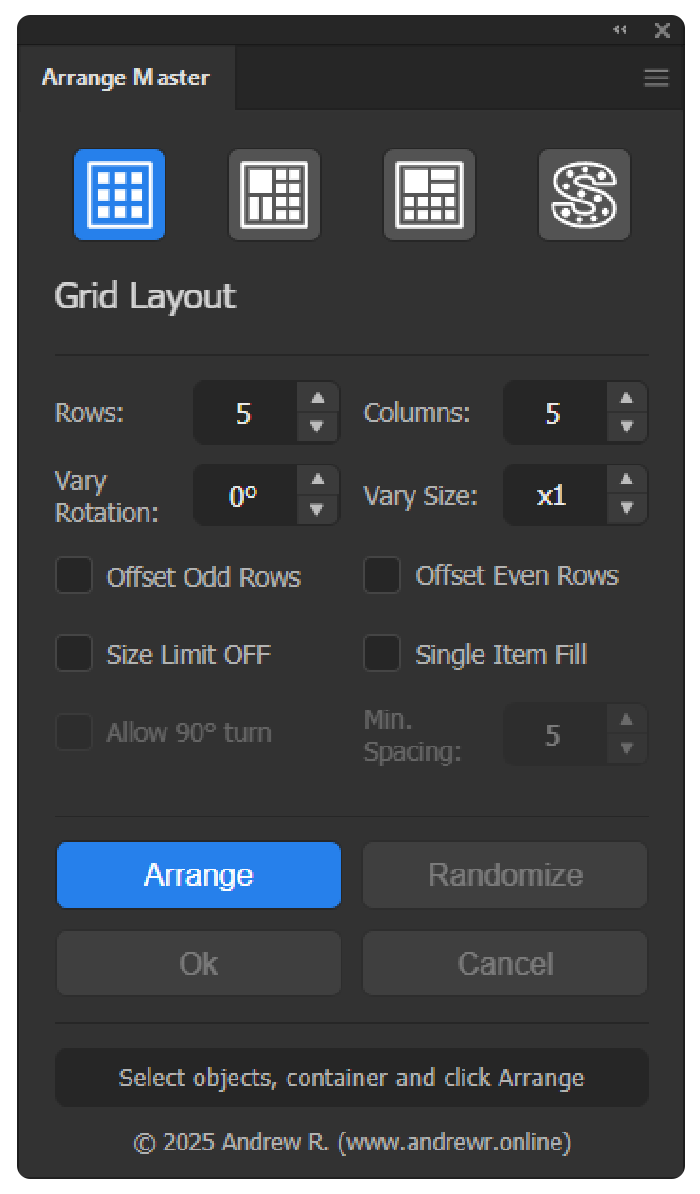
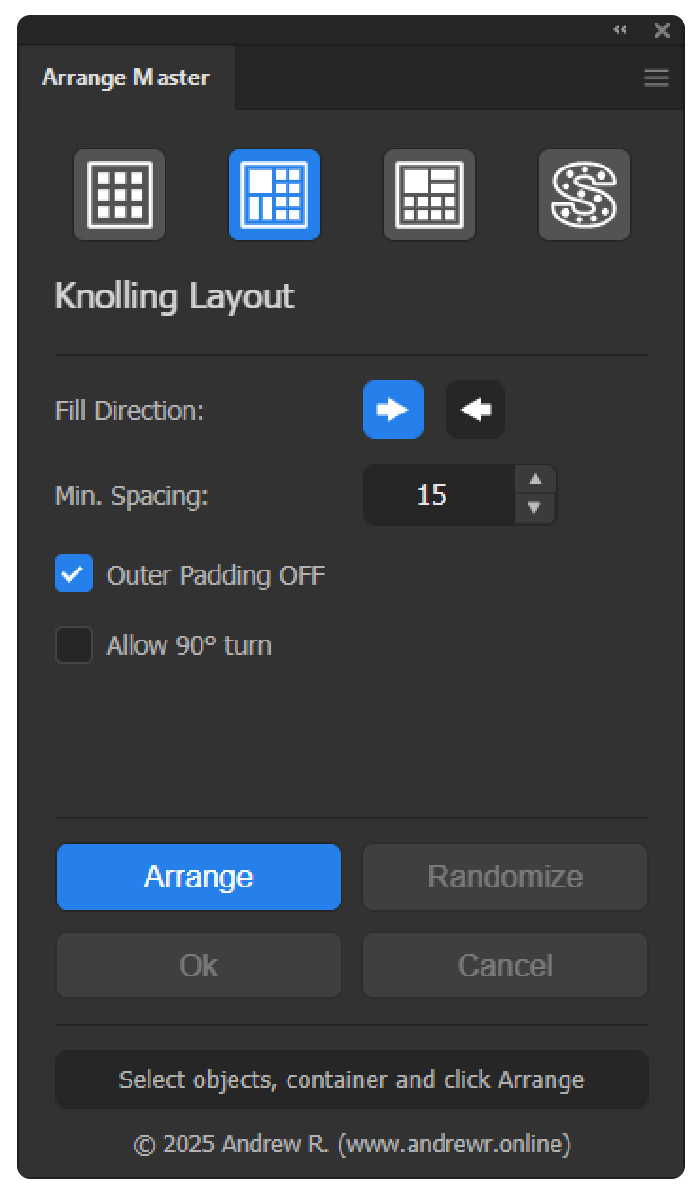
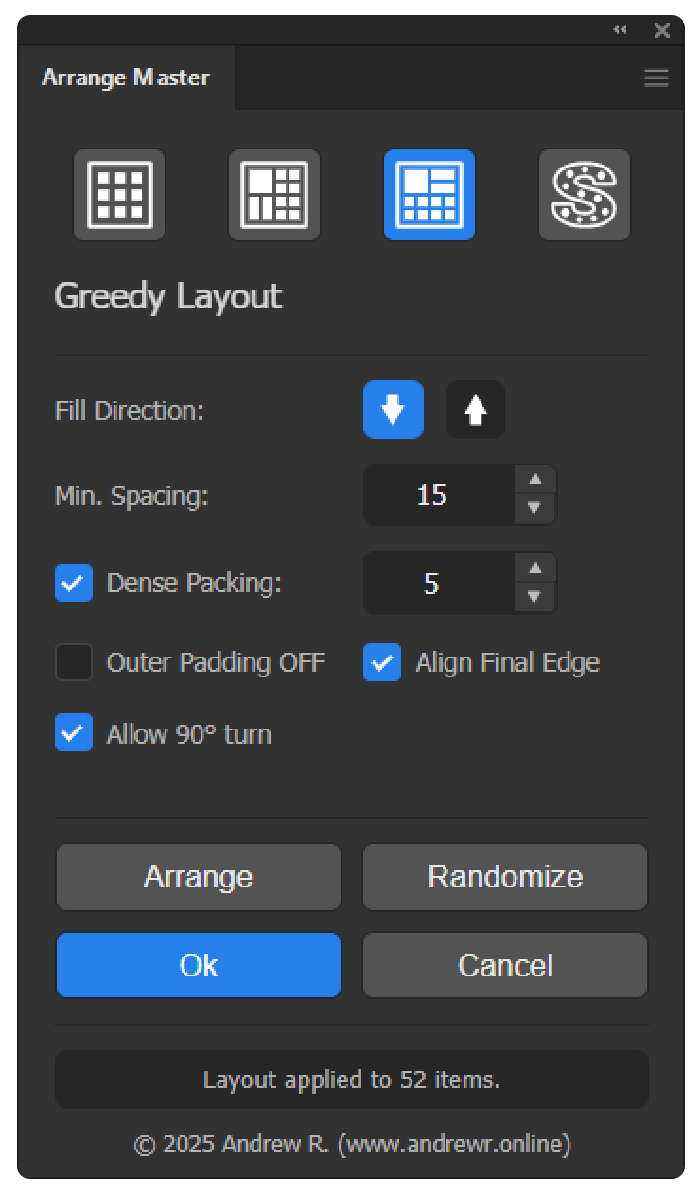
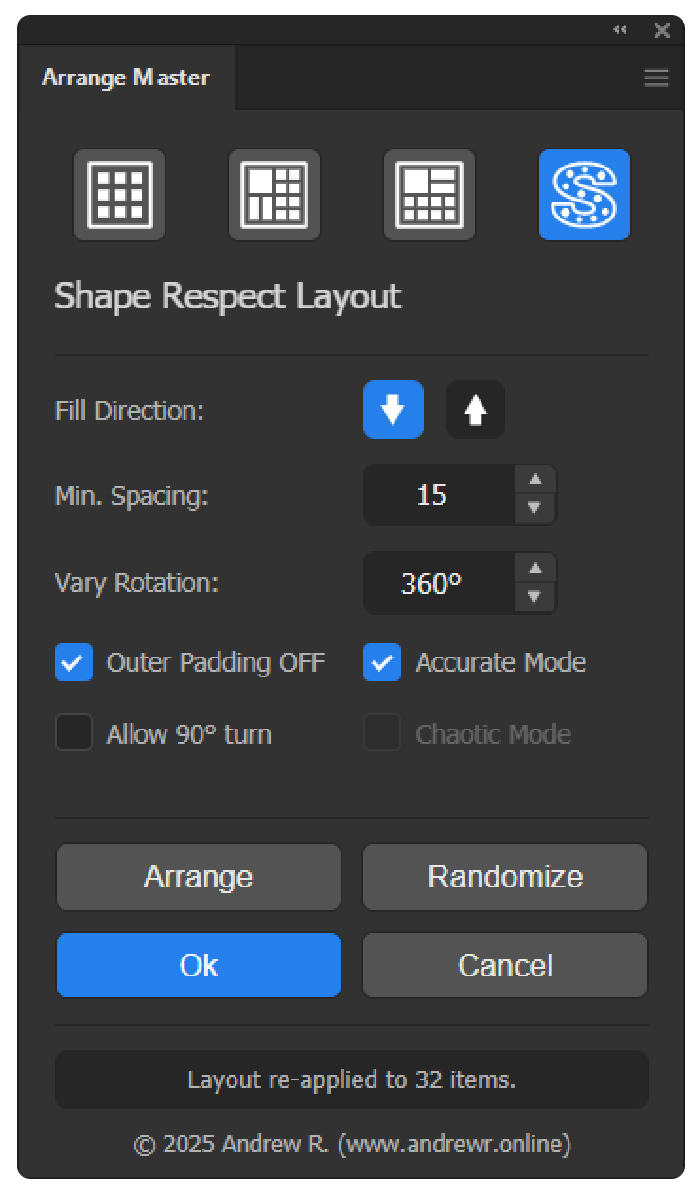
Use Cases
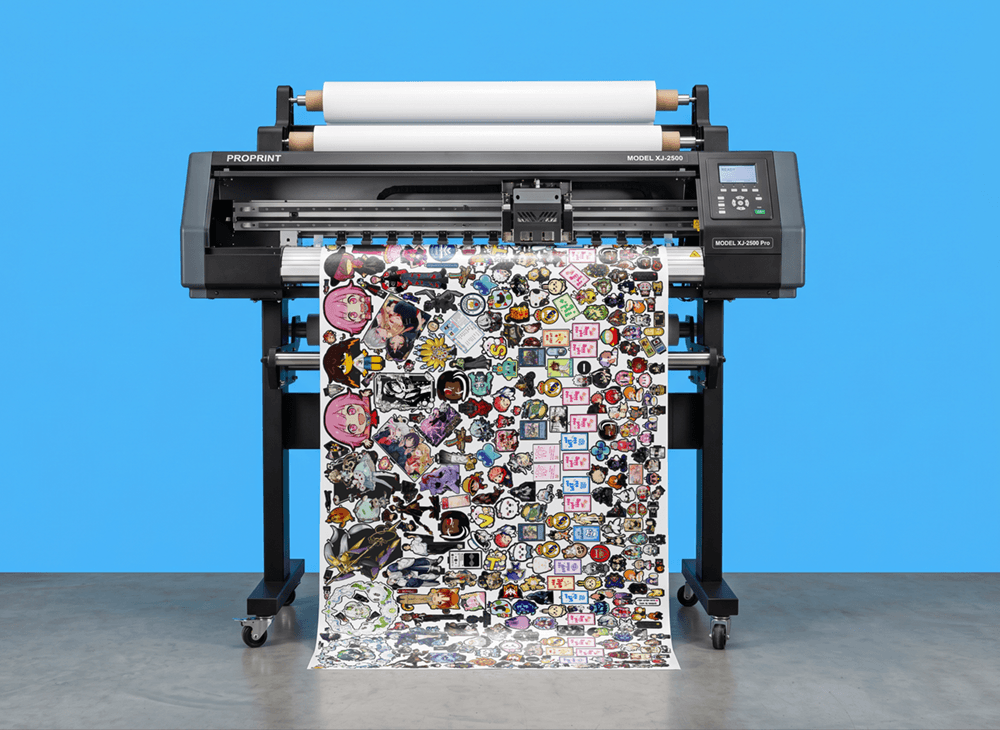
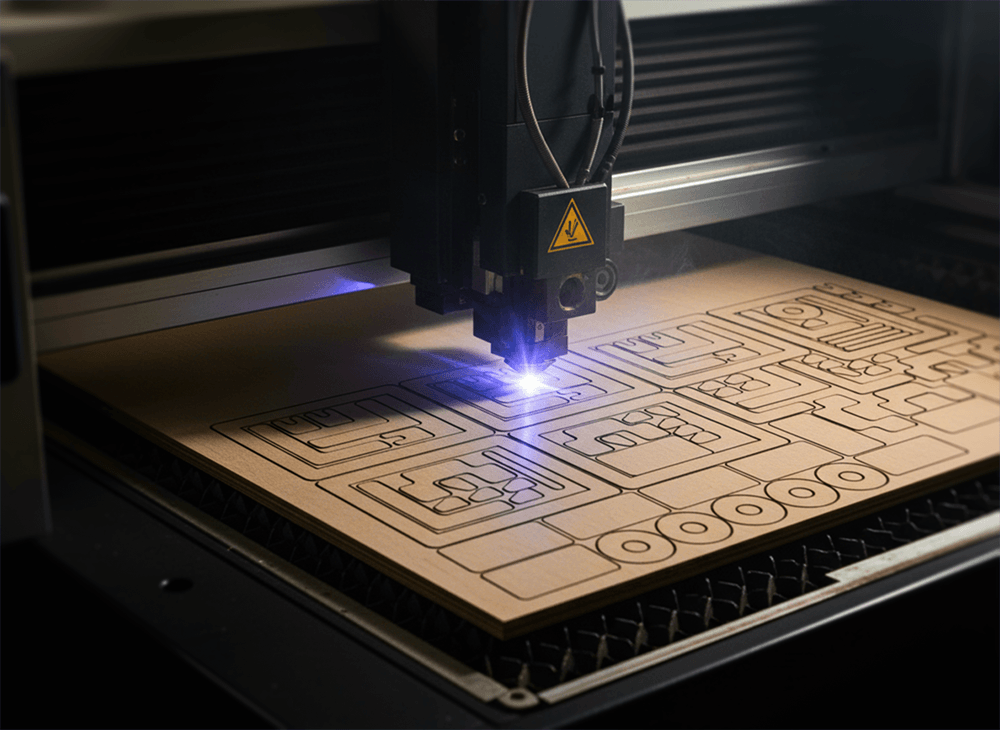
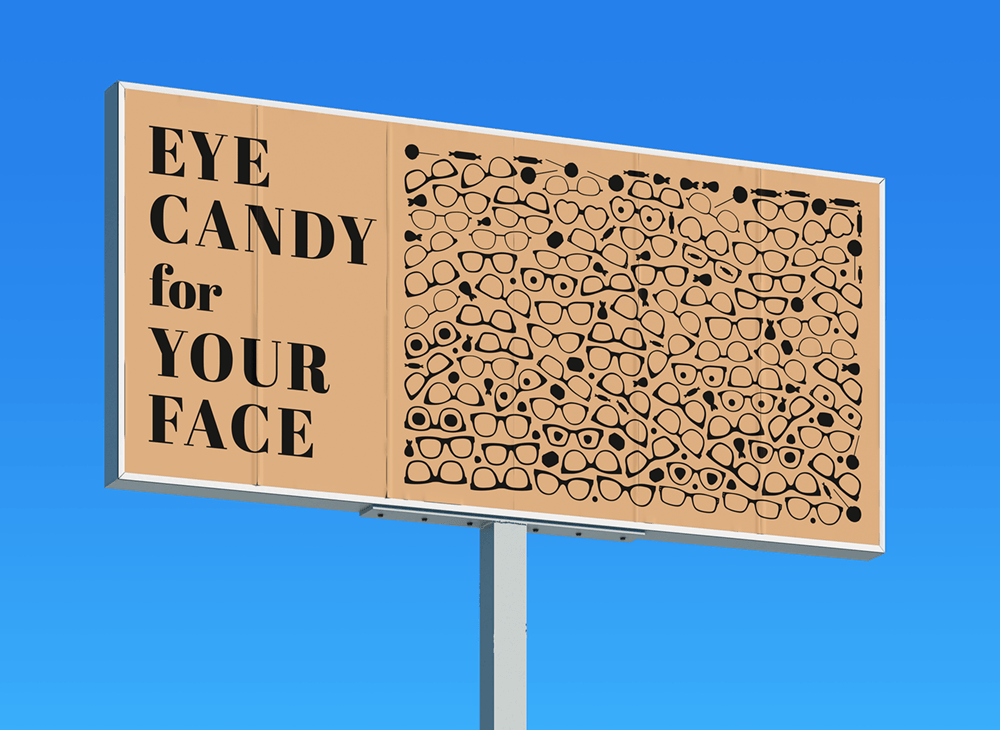

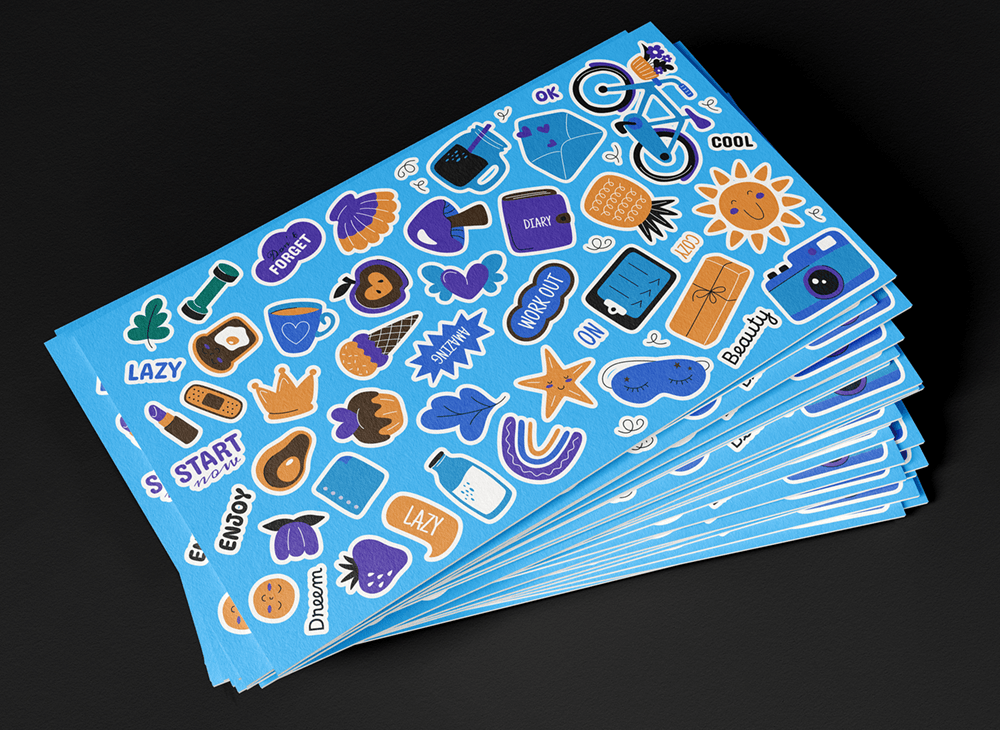

Our Customers


Inspiration Gallery
Get a Lifetime of Productivity
Commercial (Team)
- Up to 7 devices for your team.
- Commercial use for design teams and agencies.
- One-Time Purchase, Lifetime License.
- For Adobe Illustrator CC 2018-2026+ (Mac & Windows).
- Free Updates for v1.x.
Personal License
- Up to 2 devices per license.
- Personal use and freelance client projects.
- One-Time Purchase, Lifetime License.
- For Adobe Illustrator CC 2018-2026+ (Mac & Windows).
- Free Updates for v1.x.
Extended Commercial
- Up to 20 devices for your business.
- Unrestricted mass production (POD, CNC, etc.).
- Digital resale authorized (asset packs, templates).
- One-Time Purchase, Lifetime License.
- Free Updates for v1.x.
Frequently Asked Questions
A blank panel in Adobe CEP extensions is typically caused by a Creative Cloud sync issue, macOS security flags (Gatekeeper quarantine), or missing PlayerDebugMode permissions. Please try the following solutions:
Fix for macOS (Terminal)
Option 1: Universal Terminal Command (Recommended)
Quit Adobe Illustrator, open the Terminal app (Cmd + Space, type "Terminal"), paste this single all-in-one command, and press Enter:
(Enter your Mac password when prompted, then restart Adobe Illustrator).
Detailed Step-by-Step Breakdown for Mac:
-
Enable PlayerDebugMode & Reset Preferences:
for v in {8..20}; do defaults write com.adobe.CSXS.$v PlayerDebugMode 1; done
killall -u `whoami` cfprefsd -
Remove Quarantine Attributes (Gatekeeper):
sudo xattr -cr ~/Library/Application\ Support/Adobe/CEP/extensions/
sudo xattr -cr /Library/Application\ Support/Adobe/CEP/extensions/ -
Set Correct Folder Permissions:
chmod -R 755 ~/Library/Application\ Support/Adobe/CEP/extensions/
-
Clear CEP Cache (cep_cache):
rm -rf ~/Library/Caches/CSXS/* && rm -rf ~/Library/Caches/com.adobe.CSXS.* && killall cfprefsd
Option 2: Reinstall the latest Arrange Master build first
Adobe Illustrator updates can change the CEP host and cause an older extension build to open as a blank panel. Before changing Illustrator versions, completely remove the old Arrange Master extension, install the newest build from your purchase download, restart Illustrator, and test again.
If the panel works in an older Illustrator version but is blank in the newest one, this is a useful compatibility diagnostic. Contact support with your exact Illustrator version, macOS version, Mac model/CPU, and Arrange Master version. Do not assume that a permanent Illustrator rollback is required.
Fix for Windows (Registry)
The automated Windows installer (ArrangeMaster-Setup.exe) configures this registry key automatically during setup. However, if you installed the plugin manually using a .zxp file and ZXP installer, you must create a registry key to unlock the panel. Follow these steps to create the fix file yourself:
- Open Notepad.
- Copy the code below and paste it into the empty text file:
[HKEY_CURRENT_USER\Software\Adobe\CSXS.10]
"PlayerDebugMode"="1"
[HKEY_CURRENT_USER\Software\Adobe\CSXS.11]
"PlayerDebugMode"="1"
[HKEY_CURRENT_USER\Software\Adobe\CSXS.12]
"PlayerDebugMode"="1"
[HKEY_CURRENT_USER\Software\Adobe\CSXS.13]
"PlayerDebugMode"="1"
[HKEY_CURRENT_USER\Software\Adobe\CSXS.14]
"PlayerDebugMode"="1"
[HKEY_CURRENT_USER\Software\Adobe\CSXS.15]
"PlayerDebugMode"="1"
[HKEY_CURRENT_USER\Software\Adobe\CSXS.16]
"PlayerDebugMode"="1"
[HKEY_CURRENT_USER\Software\Adobe\CSXS.17]
"PlayerDebugMode"="1"
[HKEY_CURRENT_USER\Software\Adobe\CSXS.18]
"PlayerDebugMode"="1"
[HKEY_CURRENT_USER\Software\Adobe\CSXS.19]
"PlayerDebugMode"="1"
[HKEY_CURRENT_USER\Software\Adobe\CSXS.20]
"PlayerDebugMode"="1"
- Click File > Save As.
- Name the file fix.reg (make sure to select "All Files" in the "Save as type" dropdown so it doesn't save as .txt).
- Double-click the created fix.reg file and click Yes to confirm adding the data to your Registry.
- Restart Adobe Illustrator.
First check Spam/Junk and confirm the email address used at checkout. If the purchase portal shows no download or returns an error, contact support and include the checkout email, approximate purchase date, and payment/order confirmation. For accounting requests, include your billing details so an invoice/receipt can be matched to the correct purchase.
Connection errors during license activation or demo initialization are typically caused by regional firewall restrictions, ISP routing conflicts, or proxy settings. Follow these steps to resolve the issue:
1. Configure VPN / Proxy (Mainland China & Restricted Regions)
Standard system proxies often do not route internal network traffic from Adobe Illustrator. If you are using a proxy client (such as Clash or V2Ray):
- Temporarily switch your proxy client to Global Mode or enable TUN Mode (Virtual Network Adapter). This forces Illustrator to route all traffic through the proxy.
- Click Activate Device (or open the demo panel).
- After the current Illustrator session has initialized successfully, you may return the proxy client to its normal mode. A future Illustrator session may require network access again to authenticate and load the Dense Packing engine.
2. Temporarily Pause Antivirus / Firewall
Third-party security software (such as Kaspersky, Avast, Bitdefender, McAfee, or 360 Security) or strict local firewall rules can block Illustrator's background network process (CEPHtmlEngine.exe), returning an EACCES connection error:
- Temporarily pause your antivirus web/real-time protection for 5 minutes.
- Alternatively, check your firewall settings and allow outbound connections for
CEPHtmlEngine.exeandIllustrator.exe. - Click Activate Device (or reopen the demo panel). Once activated, the license is cached permanently and you can turn your antivirus back on.
3. Resolve IPv6 Routing Conflicts (EACCES Error)
An error like EACCES [2606:4700:...] indicates that your local ISP has an IPv6 routing issue with Cloudflare edge nodes (common in Southeast Asia). If the connection fails because the Adobe CEP process cannot reach the authentication/engine endpoints, use one of these quick diagnostics:
- Option A (Fastest): Connect your computer temporarily to a mobile hotspot (4G/5G) or a VPN, open Illustrator, and click Activate Device. Once activated, return to your regular Wi-Fi.
- Option B (Disable IPv6 on Windows):
- Press
Win + R, typencpa.cpl, and press Enter. - Right-click your active network adapter (Wi-Fi or Ethernet) and select Properties.
- Uncheck Internet Protocol Version 6 (TCP/IPv6) and click OK.
- Restart Illustrator and click Activate Device. (You can re-enable IPv6 afterward).
- Press
Once installed, restart Adobe Illustrator. You can find the panel in the top menu under:
Window > Extensions > Arrange Master
Free ExtendScript scripts process items sequentially using simple bounding boxes, which often causes Illustrator to freeze on large selections. Arrange Master offloads math to a background Chromium process, performs true-shape nesting for complex vectors, provides a non-destructive session workflow, and preserves multi-layer prepress structures (Cut, Print, Marks) without flattening your artwork.
Version 1.5.0 improves directional packing, adapts Single Item Fill to the source shape, and expands custom-container support to groups and compound clipping masks. It also supports moving related artwork across production layers together and restoring retained artwork to its layers when you finish.
Arrange Master calculates the visual area of all selected objects and automatically designates the object with the largest area as the container. All other selected items are treated as objects to be arranged inside it.
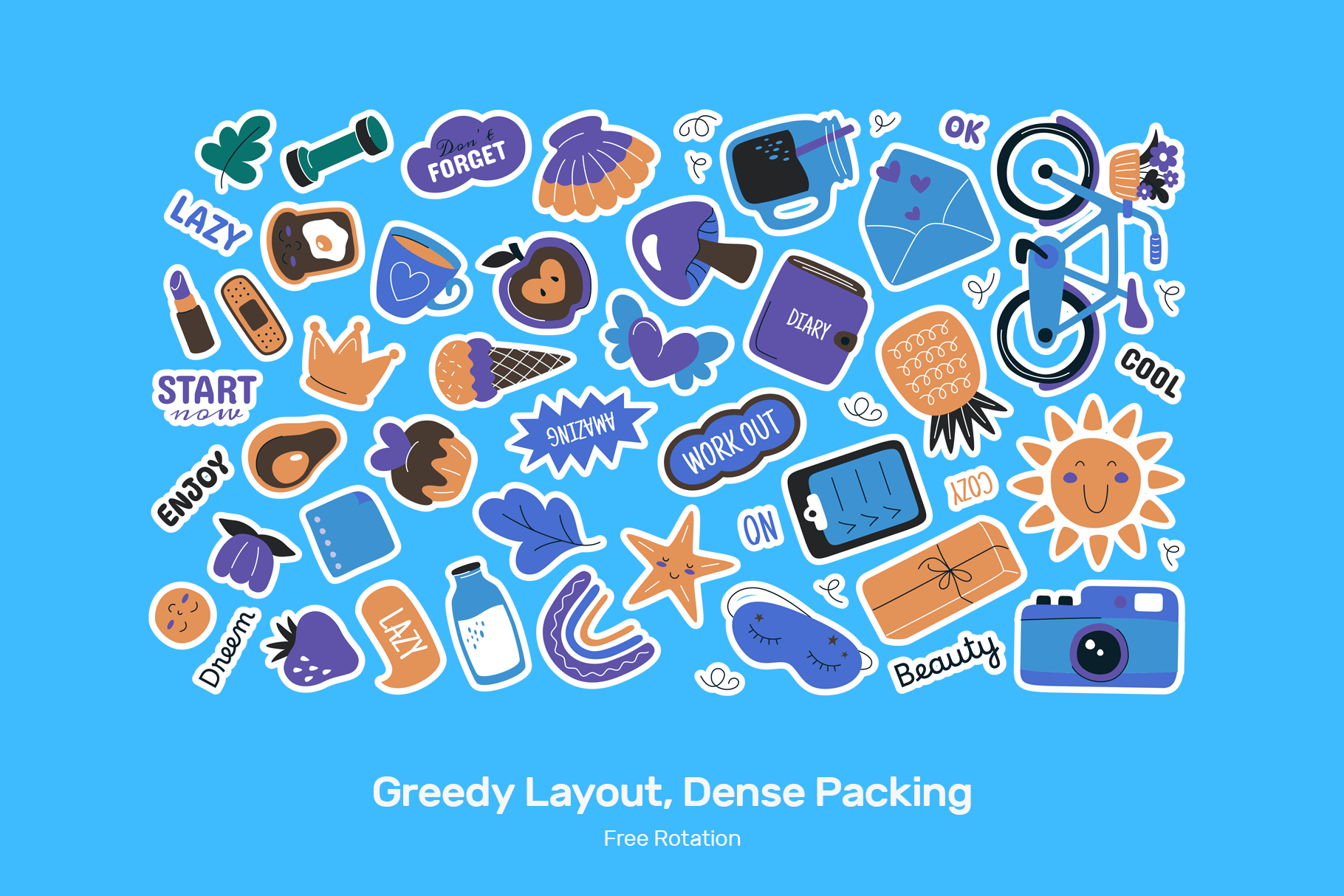
Raster graphics (photos, embedded or linked images) are supported in standard layout modes (Grid, Knolling, Greedy, Shape Respect) based on their rectangular bounding boxes. Dense Packing mode requires vector path geometry for contour analysis, so it is vector-only.
Yes. You can select related artwork across layers such as CUT, PRINT, and MARKS. Arrange Master identifies overlapping components that belong together for the arrangement, moves them as a unit, and restores retained artwork to its original layers when you finish with OK. Cancel restores the original selection.
Before a large job, test several representative items and inspect the result after OK. Make sure nearby but unrelated artwork has not been included in the selection, and verify cut contours, marks, and stacking order before export. A session must be finished before you treat its working objects as the final file.
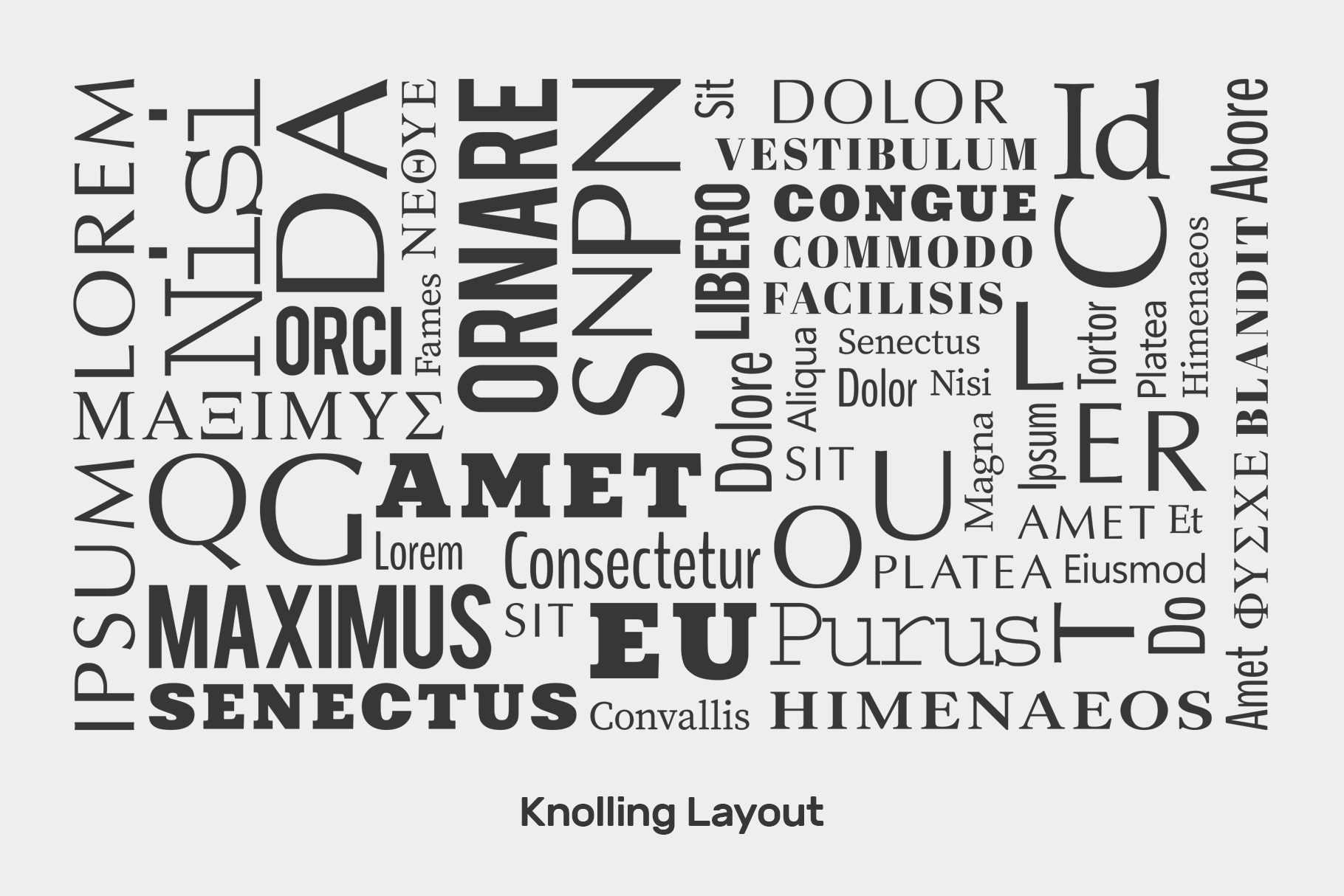
In the demo, you can test layer retention with Knolling or another ordinary layout. Dense Packing deliberately produces a watermarked raster, so it does not retain separate editable production layers within that raster. Objects excluded by the demo limit remain outside it and stay unchanged.
Yes. You can select items across multiple layers. Arrange Master automatically clusters overlapping multi-layer components during arrangement, and upon clicking Ok, restores every object to its original layer and stacking order.
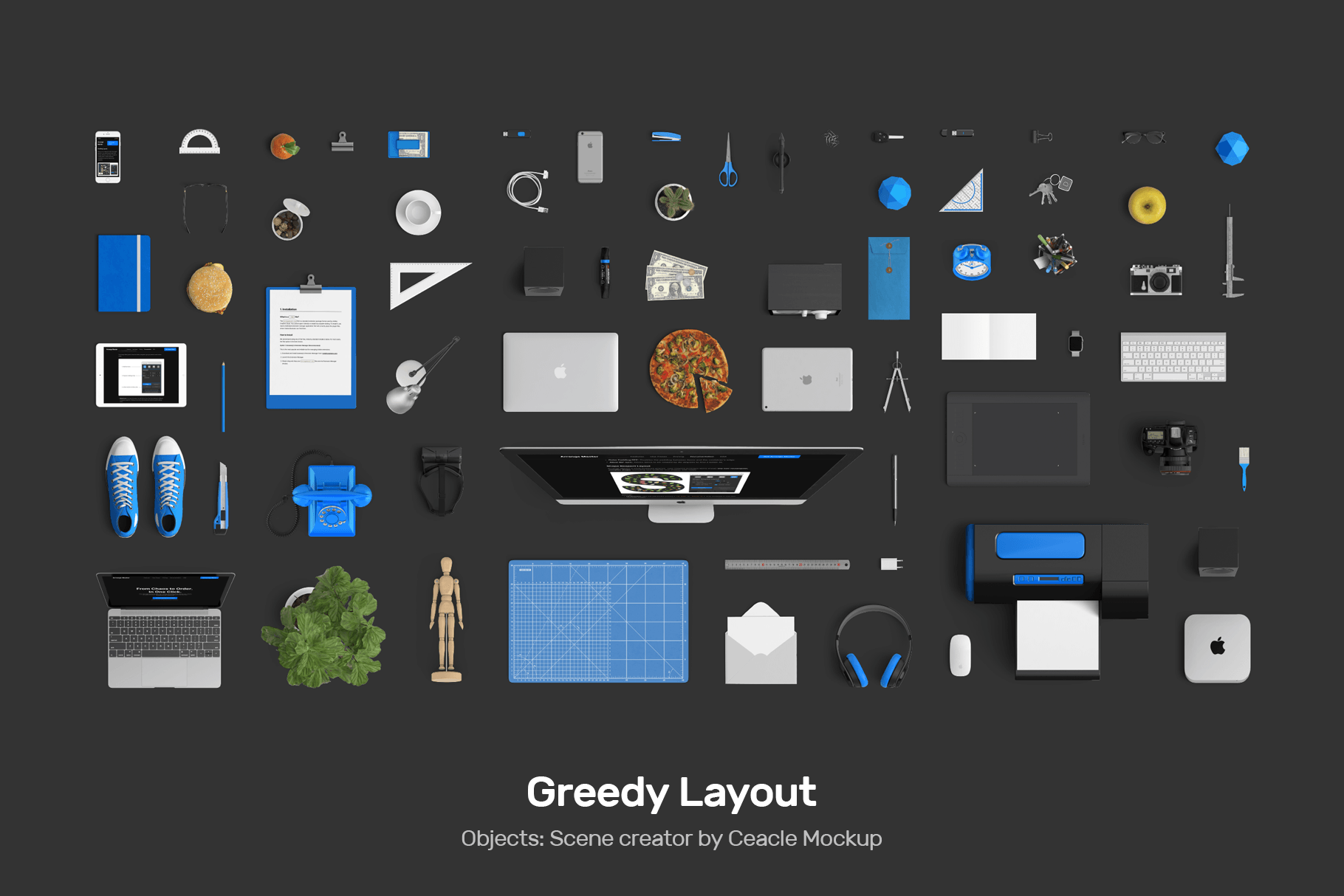
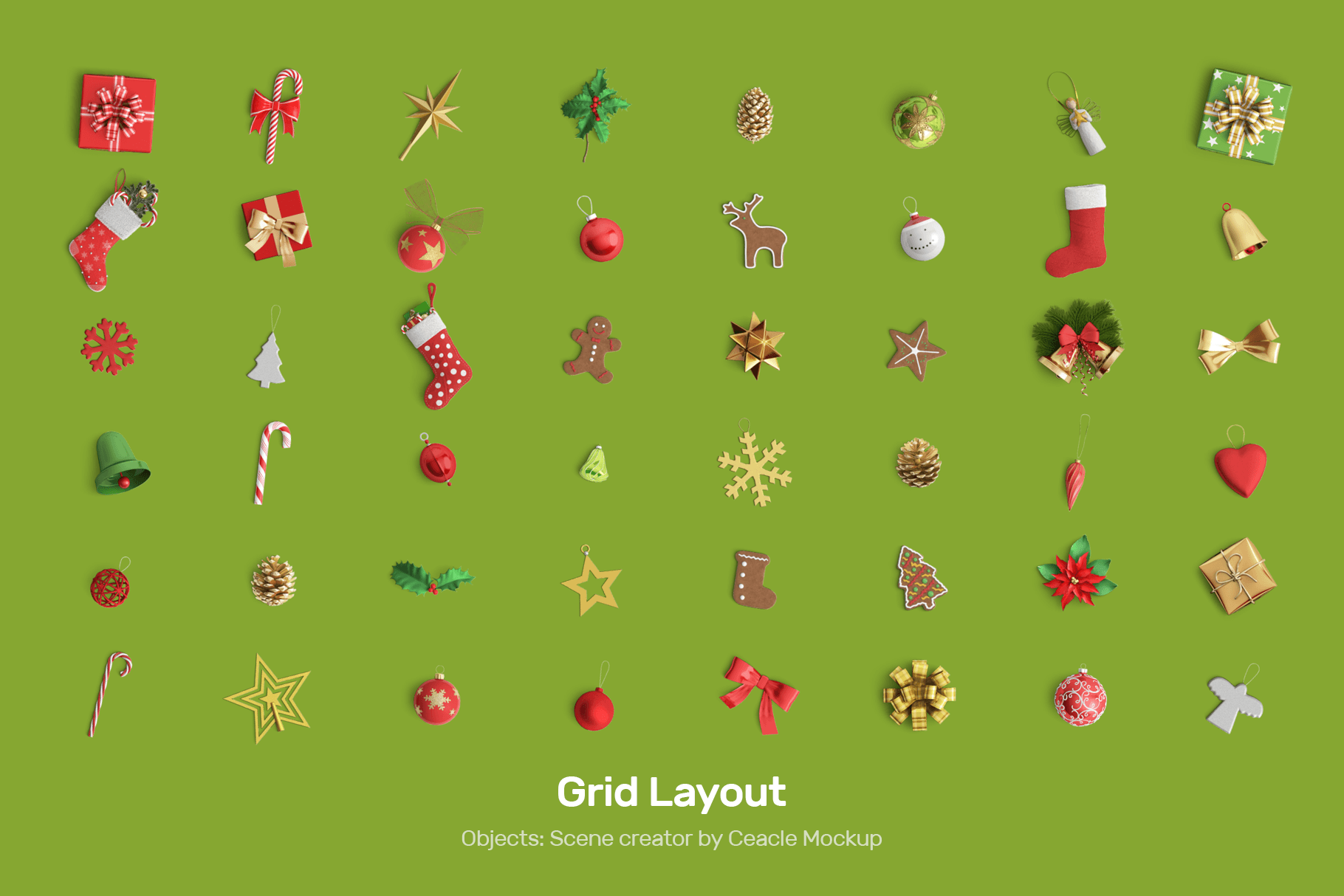
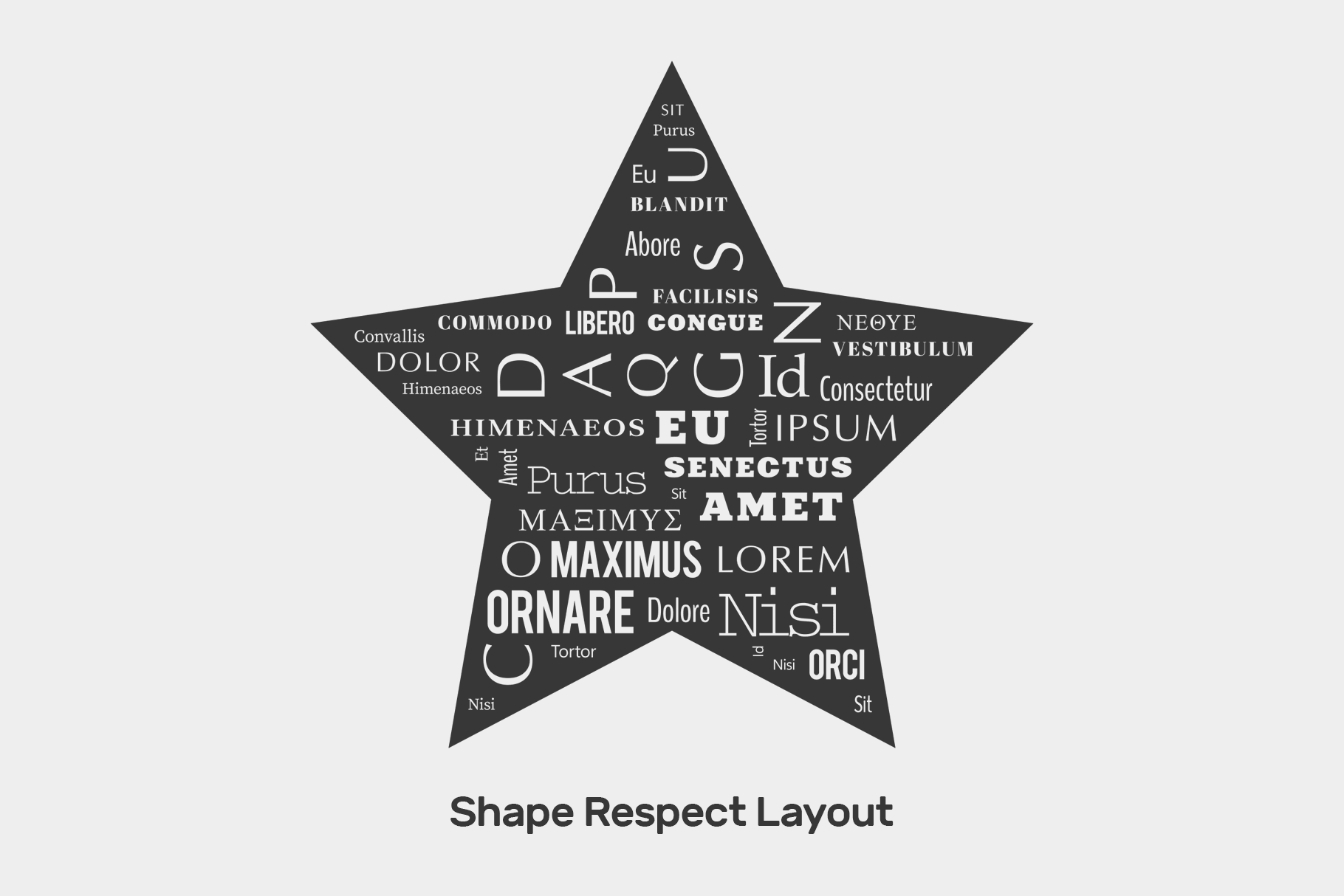
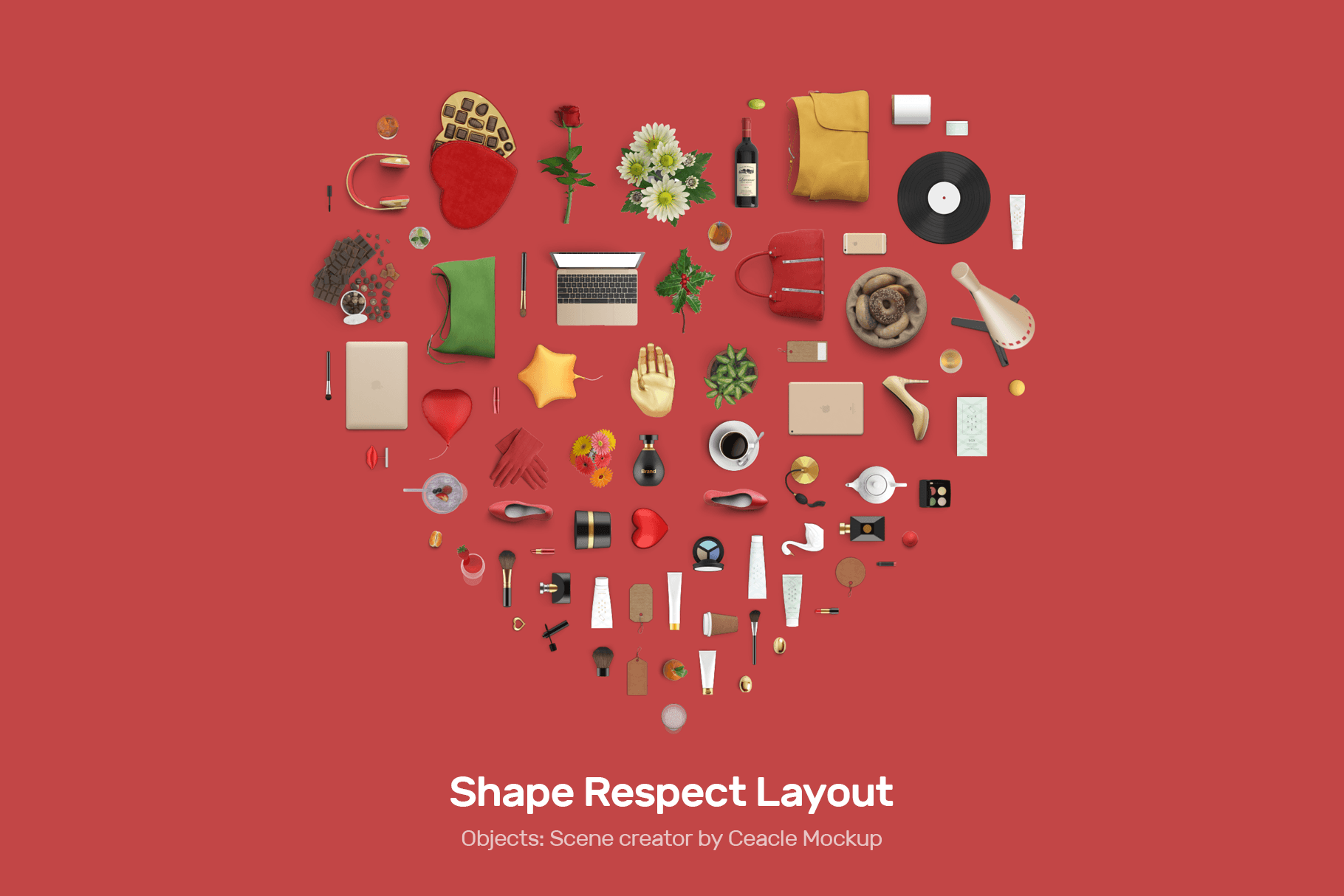
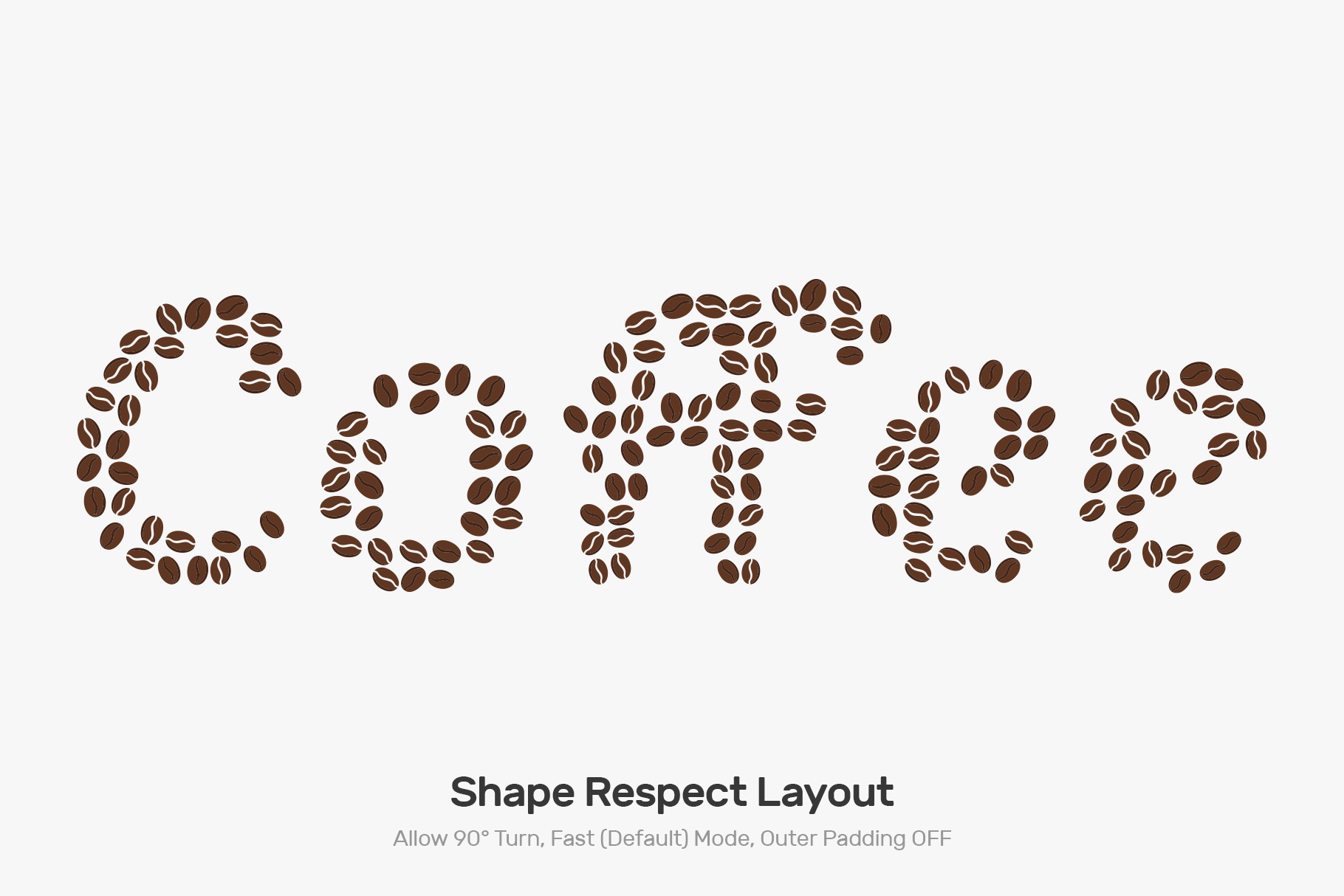
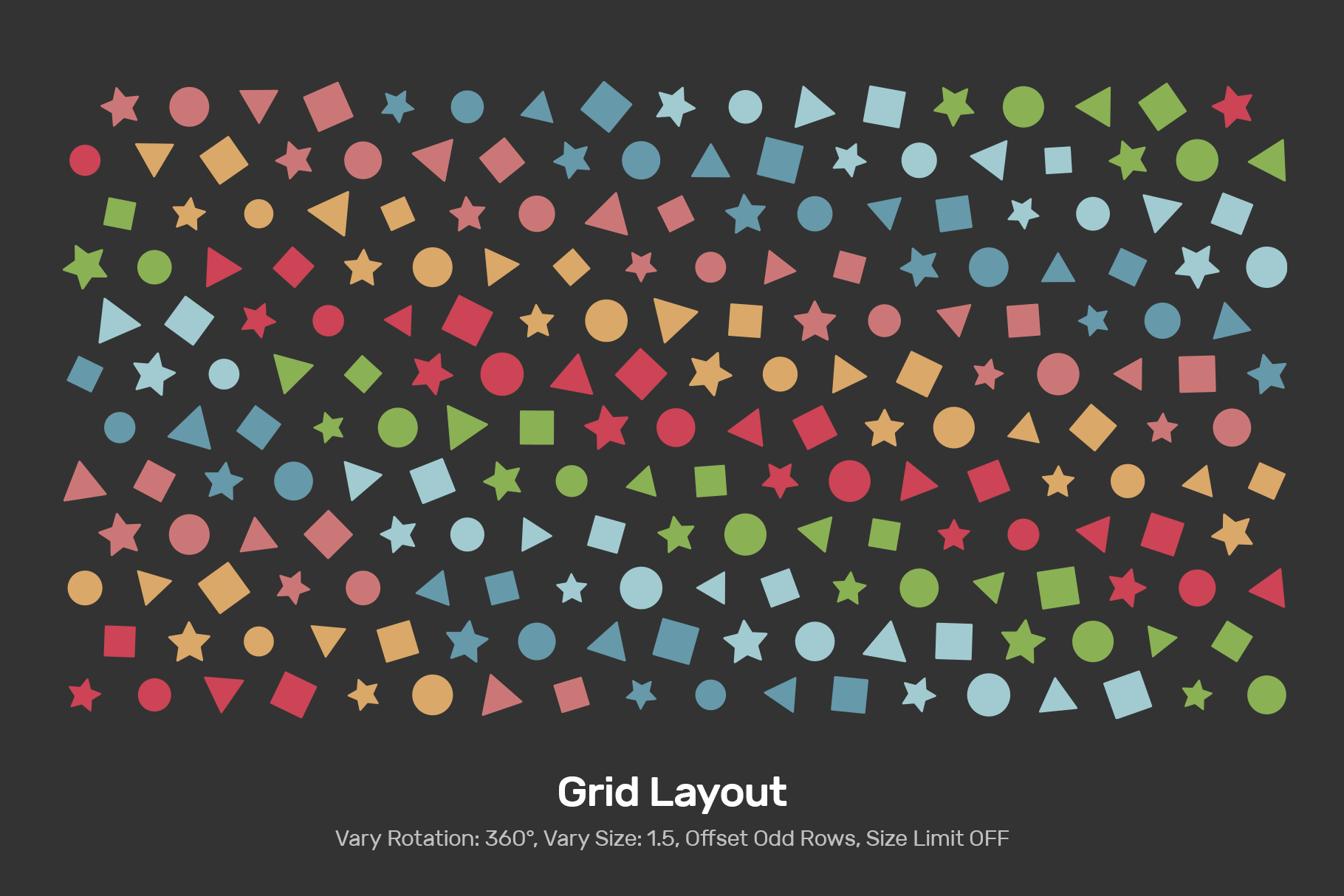
Grid, Knolling, and Greedy layout algorithms calculate placement using the rectangular bounding box of the container. To pack items strictly inside curved or custom vector boundaries, use the Shape Respect Layout mode.
Note: If your container is a complex grouped shape, ungroup it first and convert it to a Compound Path (Cmd+8 / Ctrl+8) so the algorithm can analyze it as a single shape.
Dense Packing calculates collisions from vector geometry, not from the visual meaning of your artwork. Open cut lines, individual letters, decorative paths, or a raster image inside a group may therefore not create the safety envelope you expect.
For print-and-cut work, use a clean closed vector contour as the nesting geometry. If you only need rectangular separation, turn Dense Packing off and use the standard bounding-box mode. For complex sticker files, test a small representative set in the demo before processing a full production sheet.
First check the selection: the intended container must be the largest selected object, and Shape Respect must be the active method. In 1.5.0, supported containers include closed Paths, Compound Paths, groups of closed contours, and clipping groups with supported simple or compound masks.
Inspect the Layers panel for open paths, unrelated hidden components, stray elements, or a mask different from the visible boundary you expected. A group is not itself an error. Simplify it to a clean Compound Path only when that helps clarify the outline. Container holes remain unavailable for placement, and the valid area may be much smaller than the outer bounds suggest.
Ordinary Accurate must fit each item’s entire bounding rectangle inside the valid area. Use Dense Packing for closer contour-based fitting. If an existing curved path is rejected in Chaotic, install the complete 1.5.0 package and restart Illustrator; that update includes the curved-container fix. Updating the engine alone does not update the older host’s container extraction.
Check whether Single Item / Single Item Fill is enabled. This mode is intentionally designed to duplicate one selected item and calculate how many copies fit inside the container. Turn it off when you want to arrange an existing multi-object selection without creating copies.
No. Dense Packing uses a heuristic search, so a higher generation count gives the engine more opportunities to explore layouts but does not guarantee that every individual run will be denser than a lower value. Compare several runs when material utilization is critical, and keep the best result.
Also remember that true-shape nesting is an optimization problem, not a mathematical guarantee of the global optimum; a manually discovered arrangement can occasionally beat one generated run.
90° Turn permits quarter-turn orientations so the engine can compare horizontal and vertical placement. 180° Turn permits upside-down placement without requiring quarter-turns. 360° Turn / Free Rotation enables additional-angle search where supported; it is not a promise to test every possible angle continuously.
Use these controls as production constraints. An item that must follow a grain axis may allow 180° rotation, but directional fabric, a printed design, or a one-way finish may prohibit even that reversal. Rotation does not mirror the artwork.
Available controls depend on the method and whether Dense Packing is enabled. In Greedy, 180° and Free Rotation require Dense Packing; Shape Respect supports free-angle placement in ordinary Accurate as well. The demo disables Free Rotation. Check a small sample before allowing additional orientations for a full job.