Arrange Master Documentation
Current Version: 1.5.0
1. System Requirements
| Component | Minimum Specification | Recommended Specification |
|---|---|---|
| Operating System | Windows 10 (64-bit) macOS 11.0 (Big Sur) |
Windows 11 (64-bit) macOS 13+ (Ventura, Sonoma, Sequoia) |
| Host Application | Adobe Illustrator CC 2018 (v22.0) | Adobe Illustrator 2022–2026+ (v26.0–v30.x+) |
| Processor (CPU) | 64-bit Intel / AMD dual-core, 2.0 GHz | Quad-core 3.0 GHz+ or Apple Silicon (M1/M2/M3/M4) |
| System Memory (RAM) | 8 GB RAM | 16 GB or higher (for sets with 300+ vector paths) |
| Display Resolution | 1280 × 800 display | 1920 × 1080 or higher display |
| Network Access | Active internet connection required for initial device activation and cryptographic module compilation into local session cache. |
Choose an OS and Illustrator version that support each other. These specifications do not imply that every listed OS can run every listed Illustrator version.
Installation
Windows Installer (Recommended)
For Windows users, the easiest and most reliable way to install Arrange Master is by using the provided installer.
- Unzip the archive you downloaded after purchase.
- Open the folder named
Windows Install. - Run the
ArrangeMaster-v1.x.x-Setup.exefile. - Follow the on-screen instructions. The installation is fully automatic and performs necessary registry configurations for the user.
ZXP Installers (macOS & Advanced Windows)
To install the ArrangeMaster.zxp file manually, you need a dedicated extension manager application.
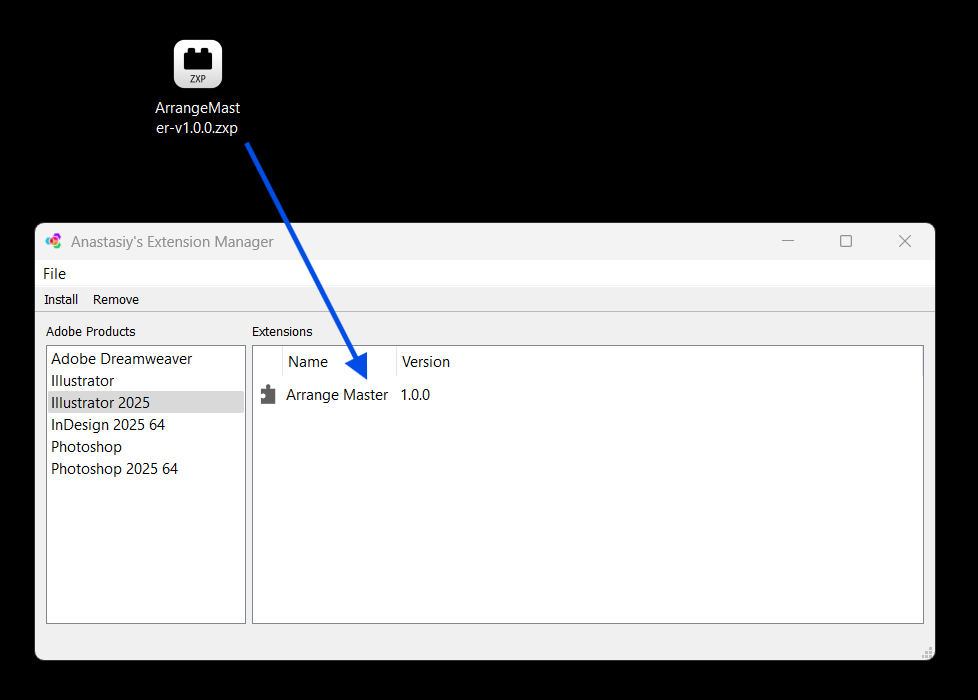
Option 1: Anastasiy’s Extension Manager (Recommended)
This is the most popular and reliable tool for managing Adobe extensions.
- Download and install Anastasiy’s Extension Manager from: install.anastasiy.com
- Launch the Extension Manager.
- Simply drag and drop your
ArrangeMaster.zxpfile onto the Extension Manager window. - The installation will complete automatically.
Option 2: ZXPInstaller
A great alternative if you encounter any issues with the first option.
- Download and install ZXPInstaller from: zxpinstaller.com
- Launch ZXPInstaller.
- Drag and drop your
ArrangeMaster.zxpfile onto its window to install.
Option 3: aescripts + aeplugins Manager App
If the other installers cannot detect your Adobe applications for any reason, the aescripts manager is a powerful alternative that often succeeds.
- Download and install the manager app from: aescripts.com/learn/aescripts-aeplugins-manager-app/
- Launch the app and log in or create an account.
- In the top menu, go to
File > Install ZXP. - Select your
ArrangeMaster.zxpfile to install it.
Finding the Panel in Illustrator
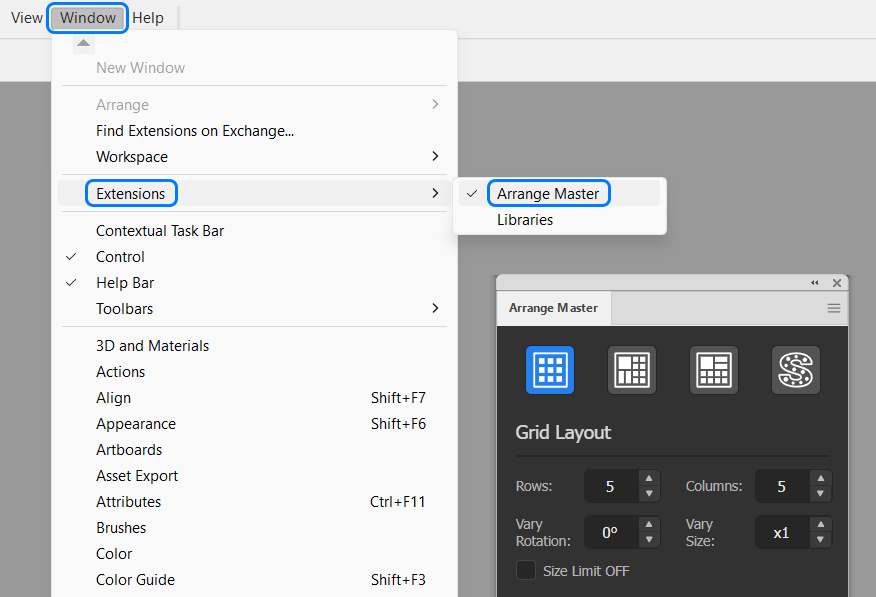
After the installation is complete, you must restart Adobe Illustrator.
Once restarted, you can find the panel in the main menu under:Window > Extensions > Arrange Master
Upgrading & Complete Uninstallation
When installing a new major version of Arrange Master, it is strictly recommended to completely remove the old version first to prevent file conflicts within the Adobe CEP engine.
For Windows Installer Users:
- Open Windows Settings > Apps > Installed apps.
- Find "Arrange Master", click the menu, and select Uninstall.
- Alternatively, navigate to your Start Menu, find the Arrange Master folder, and run the uninstaller.
For ZXP Manager Users (macOS & Windows):
Open Anastasiy’s Extension Manager or aeplugins Manager App, select Arrange Master from the list of Illustrator extensions, and click the Remove button. ZXPInstaller does not have an automatic uninstall feature, so you will have to manually check all possible CEP extension locations.
Manual Deletion (If all else fails):
If the plugin panel persists or the installer throws an error, you must manually delete the extension folder. Close Adobe Illustrator and delete the com.andrewrybalko.arrangemaster folder located in the following directories:
- Windows:
C:\Users\YOUR_USERNAME\AppData\Roaming\Adobe\CEP\extensions\
C:\Program Files (x86)\Common Files\Adobe\CEP\extensions\ - macOS:
~/Library/Application Support/Adobe/CEP/extensions/
/Library/Application Support/Adobe/CEP/extensions/
Introduction
Arrange Master is a professional True-Shape Nesting Plugin for Adobe Illustrator (CC 2018+). This guide explains how to operate the software to transform raw design elements into structured compositions for print production, CNC, and Laser Cutting preparation.
Core Principles:
- The Container: The largest object in your selection is automatically treated as the layout boundary constraint.
- The Items: All other selected objects are treated as the target dataset to be processed by the nesting algorithm.
- Non-Destructive Environment: The plugin operates within a strict Session-Based Workflow. Original vectors remain intact while calculations execute entirely on generated instances.
Activation & Connectivity Requirements
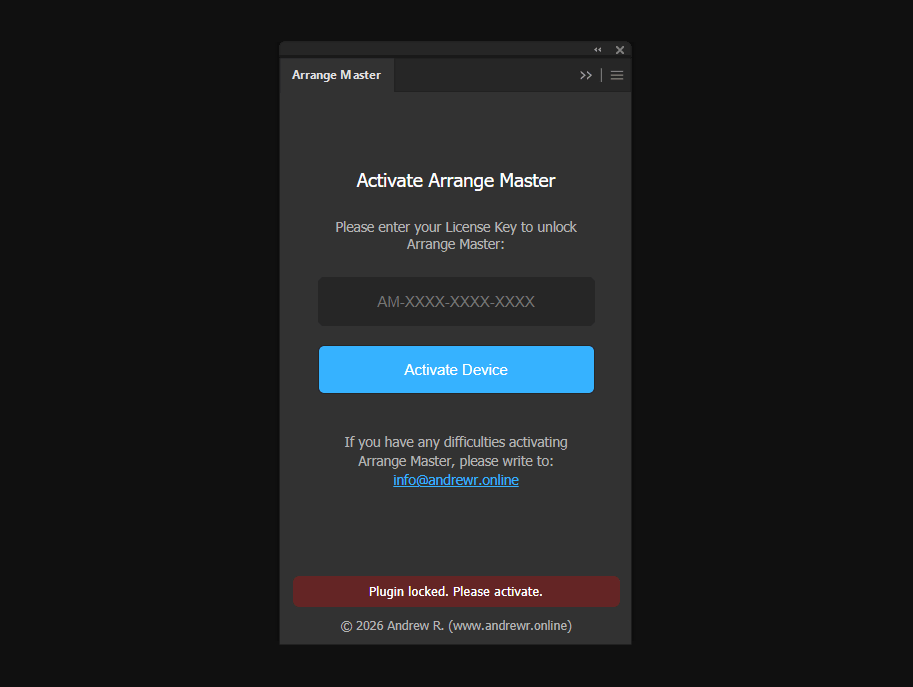
Arrange Master utilizes an external Chromium Math Engine to calculate True-Shape Nesting coordinates without freezing Illustrator. Due to the proprietary nature of this algorithm, the core mathematics module is fetched from a secure cloud server upon initialization.
Authorization Protocol:
- During the first launch you need to enter your personal License Key (provided after purchase).
- An active internet connection is mandatory to authenticate the key and load the Dense Packing engine into your device's memory.
- Once activated, the algorithm remains cached securely on your machine for the duration of the Illustrator session.
The Main Interface
The interface is modular, exposing parameters relevant only to the active layout method. Panel states are clearly mapped with designated color themes.
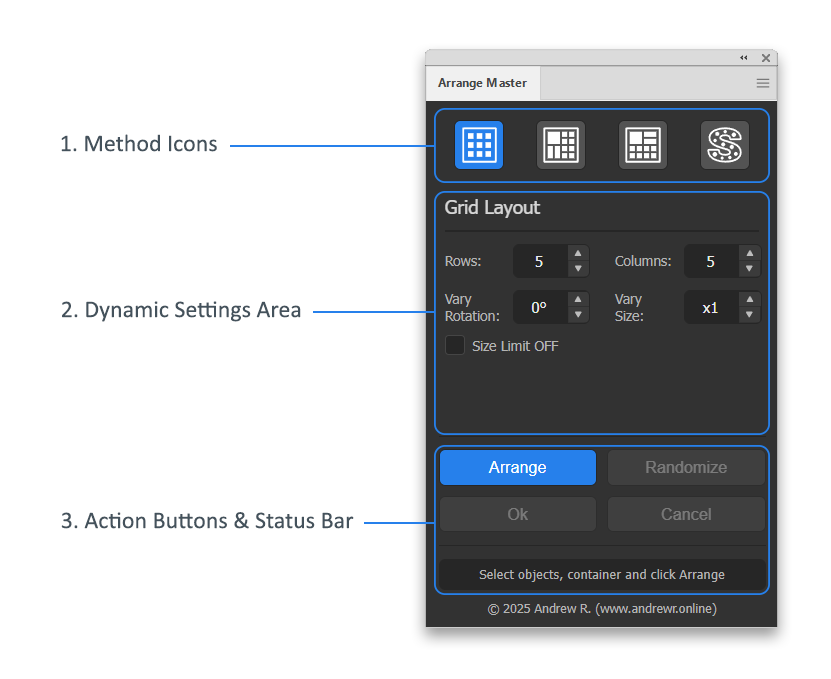
- Method Icons: At the top of the panel, you will find four icons. Each icon represents a different arrangement algorithm. Clicking an icon selects that method and reveals its specific settings below.
- Dynamic Settings Area: This central part of the panel changes based on the selected method, showing only the relevant controls for your current task.
- Action Buttons & Status Bar: The bottom section contains the main control buttons (
Arrange,Randomize,Ok,Cancel) and a status bar that provides progress feedback.
The Container as an Active Tool
One of the most important concepts to understand in Arrange Master is that the container is not a passive artboard boundary. It is an active mechanical component of the nesting process, functioning identically to a piston.
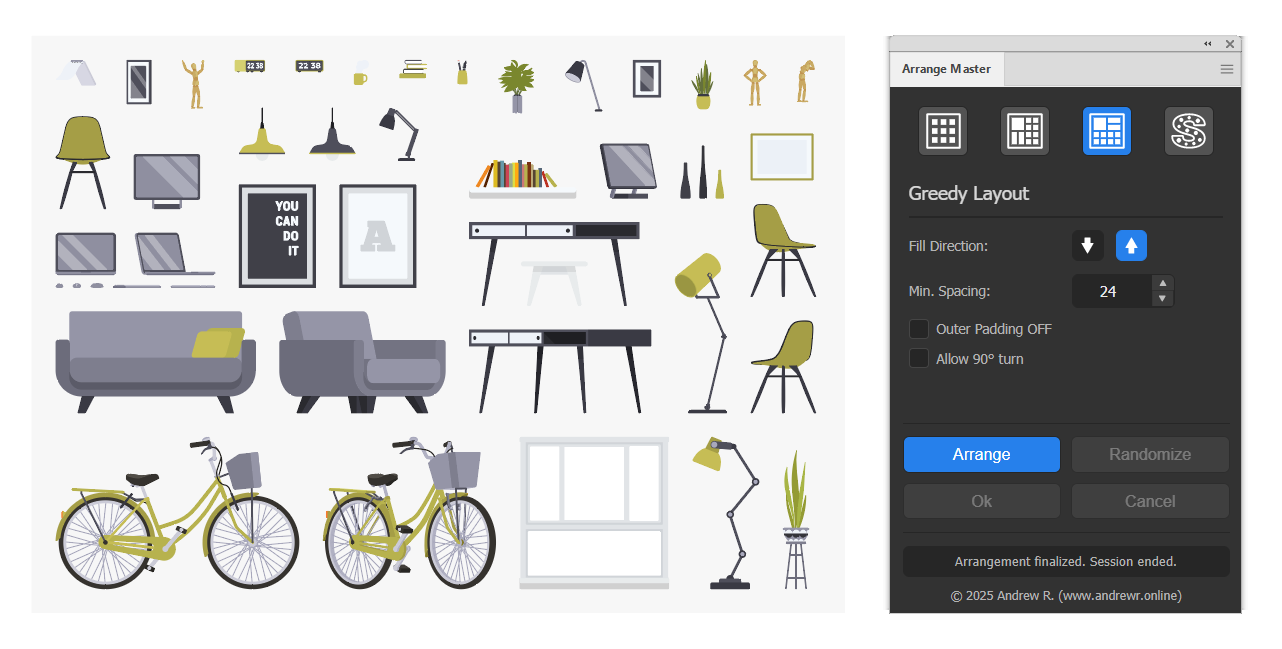
Because the algorithm prioritizes density according to the provided boundaries, manipulating the physical edges of the container directly forces the algorithm to reconsider the layout pressure:
- Squeezing the Layout: By narrowing the width of the container using Illustrator's Selection Tool and clicking
Arrangeagain, you increase the horizontal pressure. The algorithm will automatically push objects upward or downward, filling gaps to maintain the set minimal spacing. - Relaxing the Layout: Expanding the container reduces pressure, allowing objects to spread out naturally or accommodating previously rejected overflow items.
Preparing Items for Arrangement
The efficiency of the material optimization depends on how your artwork is structured before initialization.
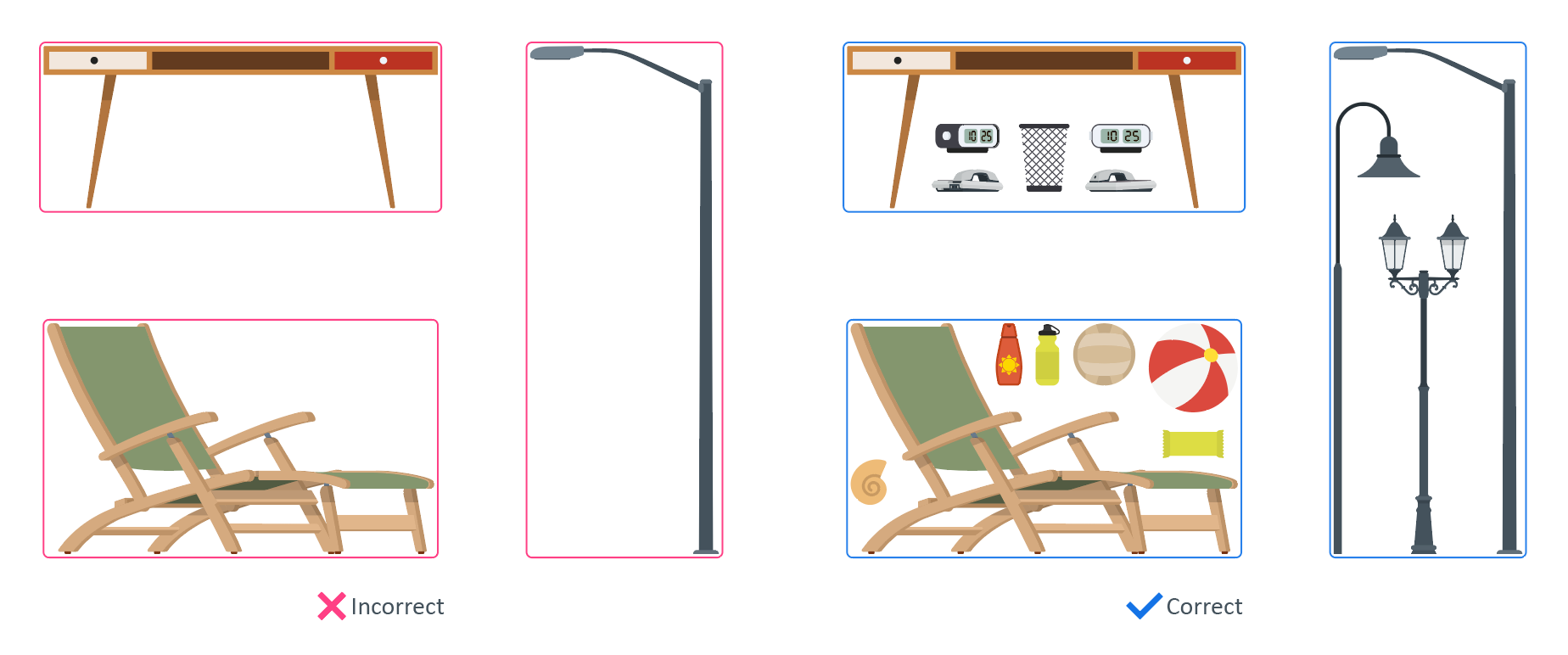
Preparation for Standard Methods
Standard algorithms calculate placement based exclusively on the Bounding Boxes (rectangular perimeter) of the items.
- Gaps: If an object has a complex shape with internal empty space (e.g., an "L" shaped lamp post), the standard algorithm treats that empty space as solid matter.
- Optimization: To achieve higher density in standard modes, manually group sub-elements into solid rectangular blocks before arranging them.
Preparation for Dense Packing (True-Shape Nesting)
Dense Packing bypasses bounding boxes and analyzes the True Vector Geometry of the object. The geometry you provide is therefore the collision geometry used by the nesting engine.
- Vector Only: Dense Packing strictly requires mathematical path data. Raster images are NOT supported as true-shape collision geometry. Use standard bounding-box modes for raster-only items.
- Use closed production contours: For stickers, laser cutting, CNC, or artwork that needs a safety envelope, nest by a clean closed cut/outer contour. Open strokes, individual letters, decorative paths, and internal details can be interpreted as separate geometry and may allow visible artwork to appear too close or overlap.
- Keep the collision boundary unambiguous: Remove stray points, hidden paths, duplicate contours, and unnecessary clipping structures before a production nest.
- Test a representative sample first: Before nesting hundreds of items, run 5–20 representative objects with the intended spacing and rotation constraints. This exposes geometry problems much faster.
Supported Object Types
Arrange Master processes standard Illustrator objects including Paths, Compound Paths, Groups, Text Objects, Symbols, and Raster Images (Embedded or Linked). The plugin accurately measures visible bounds, correctly parsing complex clipping masks and scaled symbols.
Multi-Layer Retention (Prepress Workflow)
Arrange Master supports arranging complex multi-layer designs (such as files divided into CUT, PRINT, MARKS, etc.) without flattening your layer hierarchy:
- Auto-Clustering: The plugin automatically identifies overlapping objects across different layers. It groups them mathematically during the session so they are moved and rotated as a single, cohesive unit.
- Layer Restoration: When you finalize the layout (clicking
Ok) or cancel the session, Arrange Master automatically unpacks the clusters and distributes each child object back to its originating layer while maintaining relative stacking order.
The Arrangement Workflow: Understanding Sessions
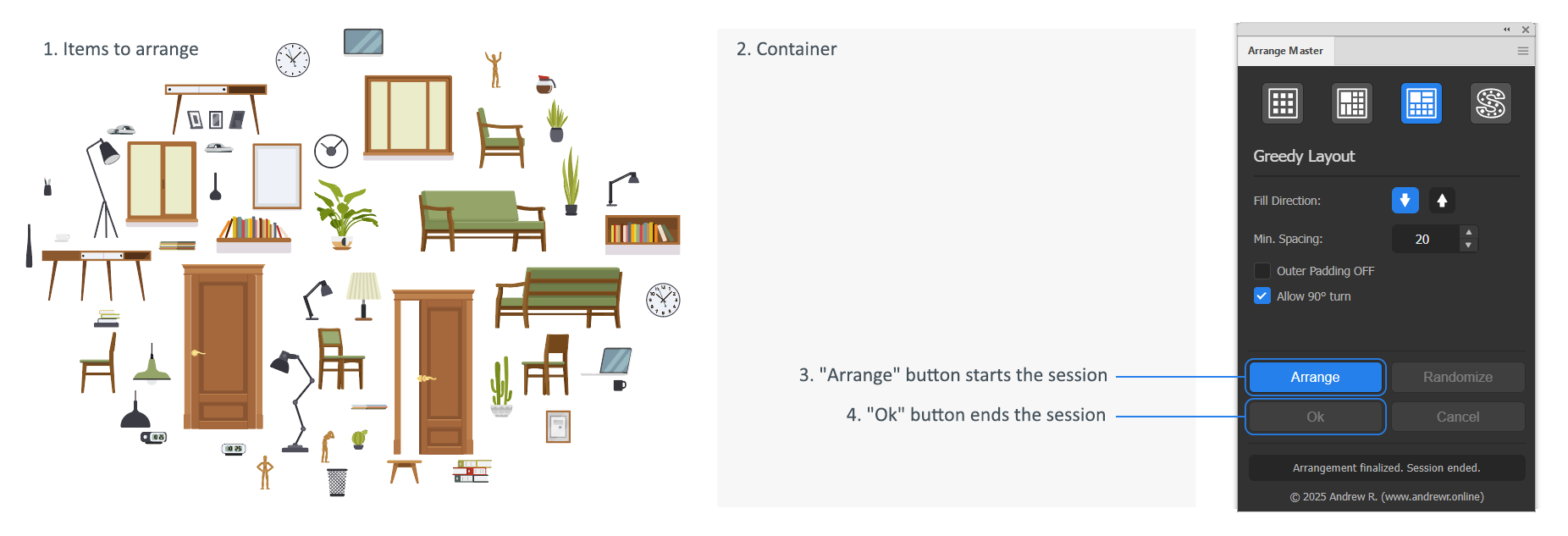
Arrange Master uses a Session-Based Workflow to protect your original objects and maintain stability during complex calculations.
Starting a Session:
A session begins the very first time you click the Arrange button after making a selection.
- It securely hides your original selected items on their native layer.
- It creates temporary working copies of your items to perform all mathematical operations.
Working within a Session:
Once active, you can experiment freely:
- Clicking
Arrangeagain will recalculate the layout with new settings instantly. - Clicking
Randomizewill apply the same settings but shuffle the item placement order.
Note: Switching to a different Illustrator document will force the plugin to auto-terminate the session to prevent data corruption.
Layout Methods
Dense Packing (True-Shape Nesting)
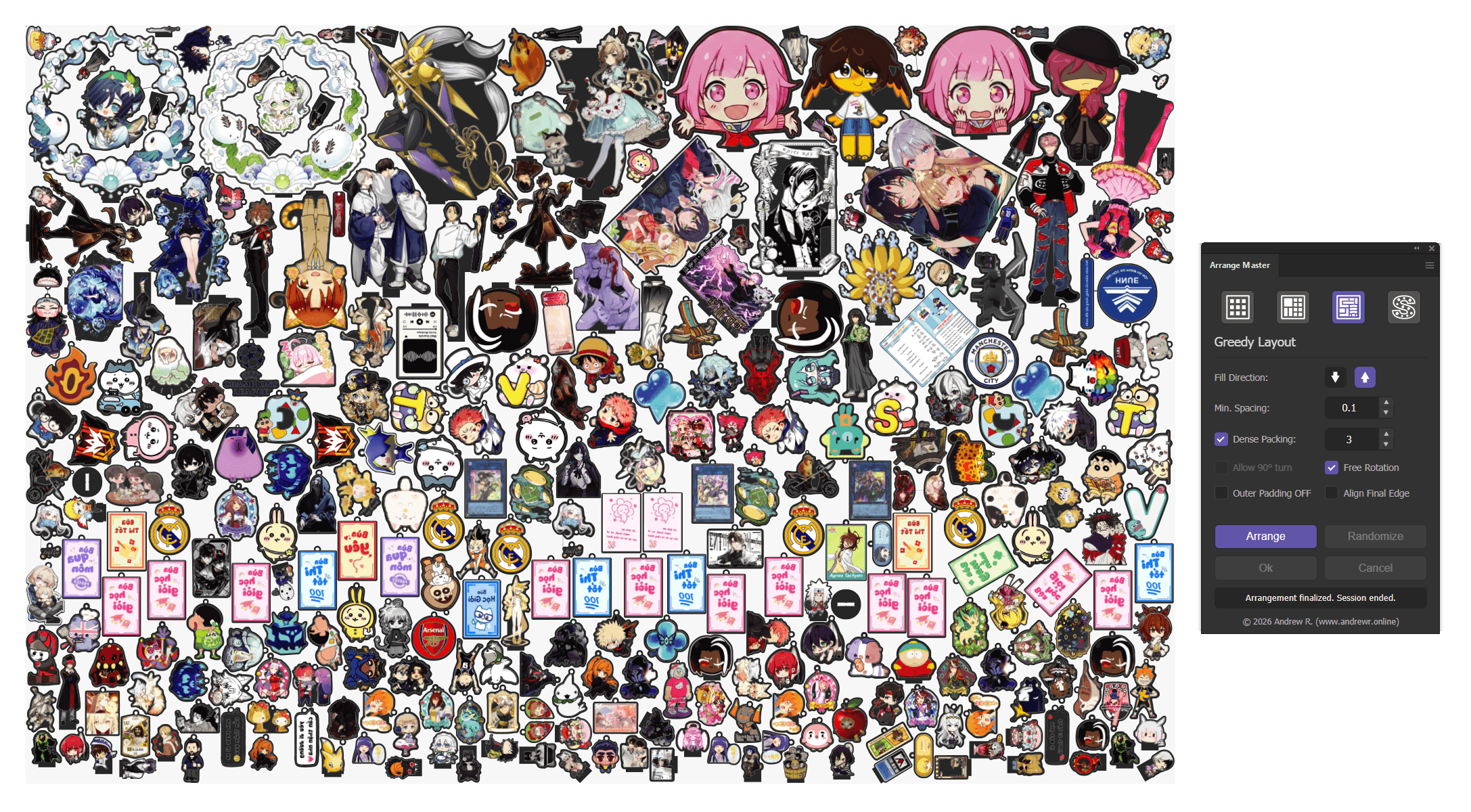
Available as a checkbox in both Greedy Layout and Shape Respect Layout, this activates Arrange Master's flagship feature: the Chromium Math Engine. This transitions the plugin from a simple bounding box arranger into a professional True-Shape Nesting tool.
Dense Packing relies on deep Vector Path Analysis. Instead of drawing a box around an item, the engine calculates the exact mathematical contour. This allows items to interlock, filling concavities and isolated cavities, providing high-yield material optimization for print production, CNC, and laser cutting preparation.
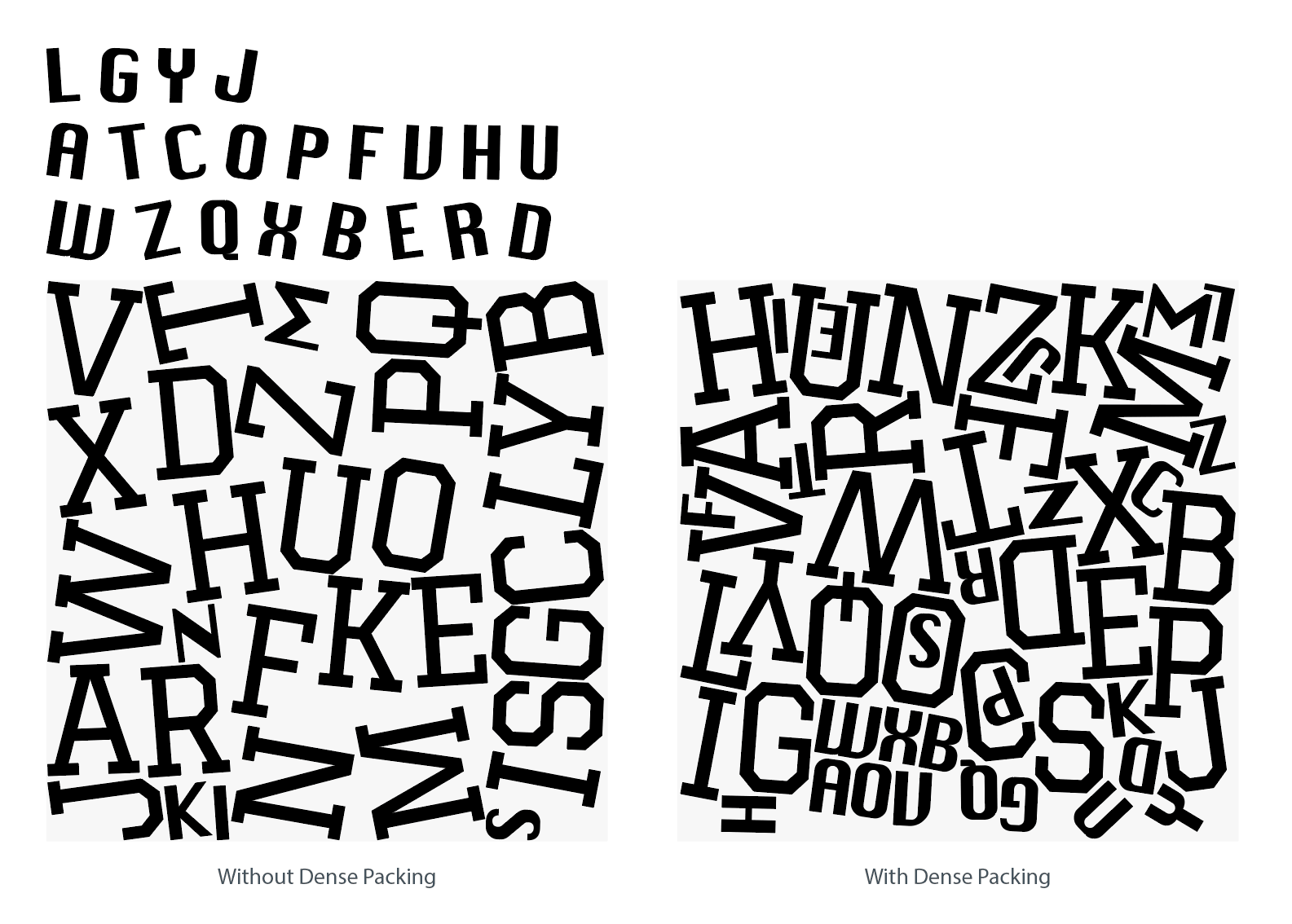
How it works:
- In Greedy Layout: Evaluates exact shapes and packs them tightly inside a standard rectangular container.
- In Shape Respect Layout: Rasterizes custom vector containers (including internal holes) and performs exact shape nesting within those specific boundaries.
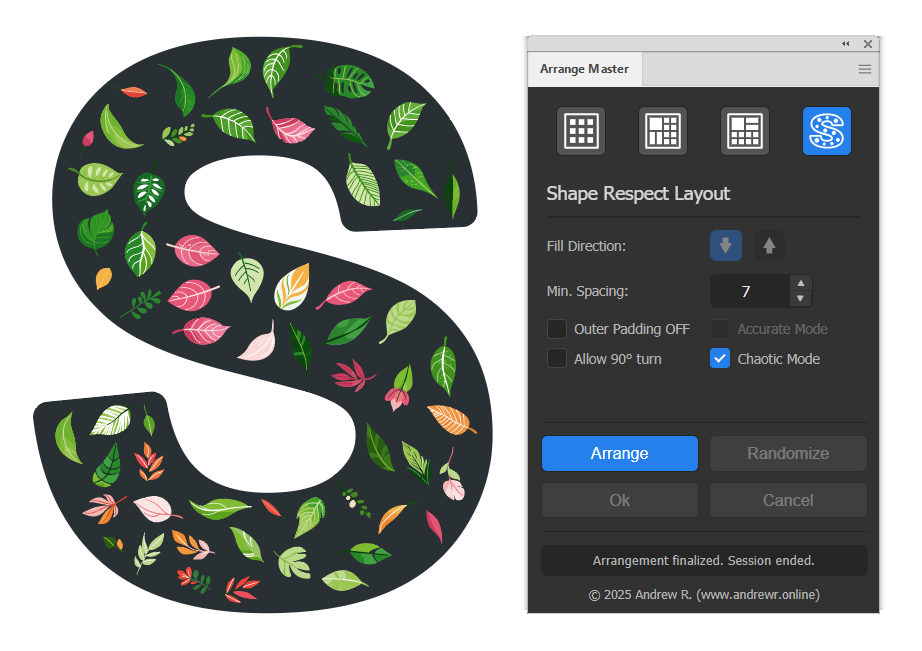
Dense Packing Settings:
- Evolution Stepper (1-50): Controls the Genetic Algorithm (GA). Start low and compare results before increasing it. More generations take longer and do not guarantee a denser layout on every run.
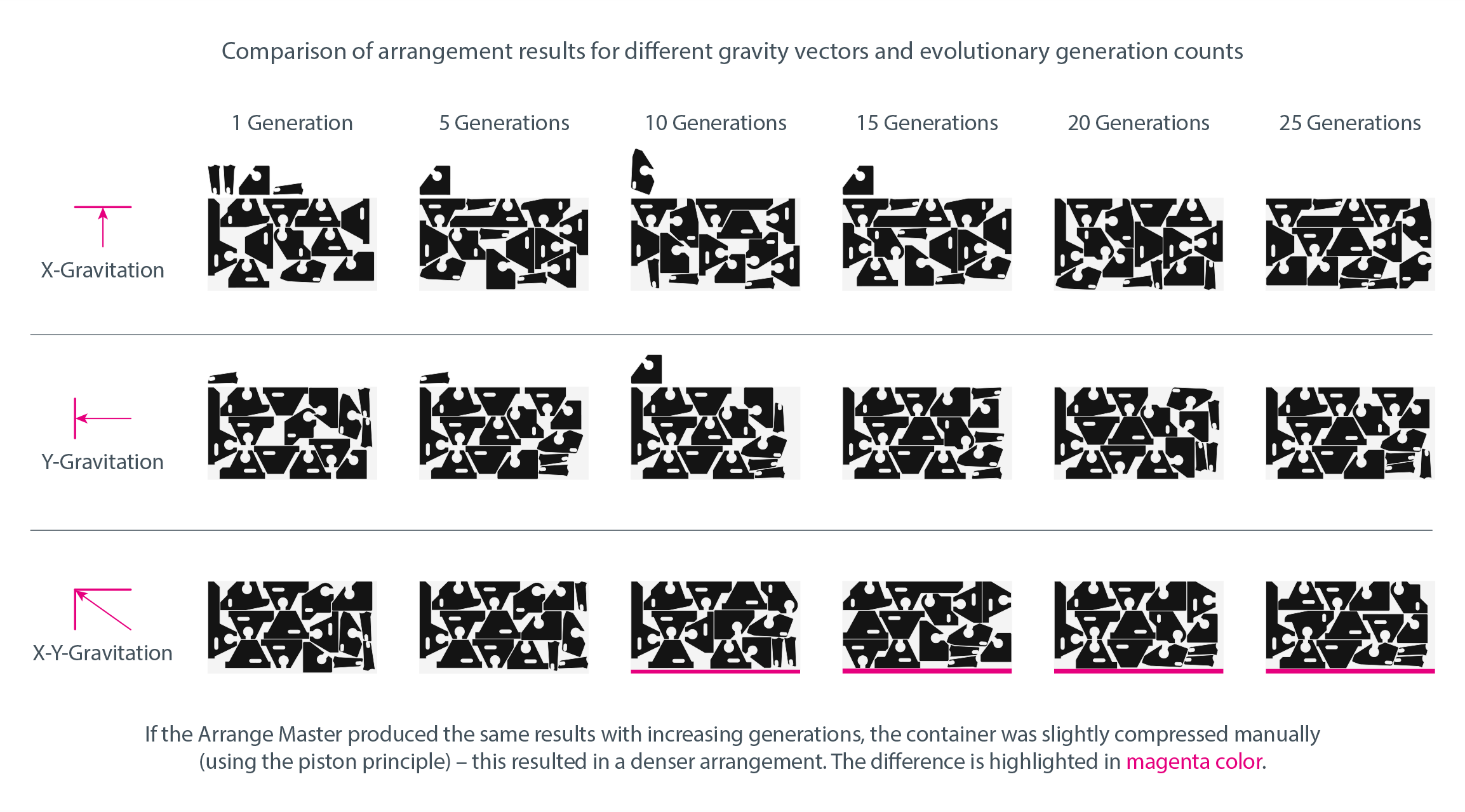
- Vector Gravity Control: Dense Packing allows you to control how gravity pulls items into position during placement.
- X-Gravity pulls items vertically (perpendicular to the X-axis). Recommended for optimizing vertical layouts.
- Y-Gravity pulls items horizontally (perpendicular to the Y-axis), which is recommended for optimizing horizontally elongated layouts.
- X/Y-Gravity (Dual) pulls items diagonally at a 45-degree angle toward the origin corner. Automatically aligns the final beveled edge of the objects array. The result and computational speed still depends of the container height, item shapes, spacing, and allowed rotations.
- 90° Turn: Orthogonal placement (0°, 90°, 180°, 270°). Recommended for rectangular or regular shaped objects.
- 180° Turn: Allows a 180° flip. Perfect for textile nesting to maintain fabric elasticity and the grain line, or for symmetrical layouts.
- 360° Turn: Allows 360° rotation with 15° steps during the collision calculation phase. Essential for complex, organic shapes.
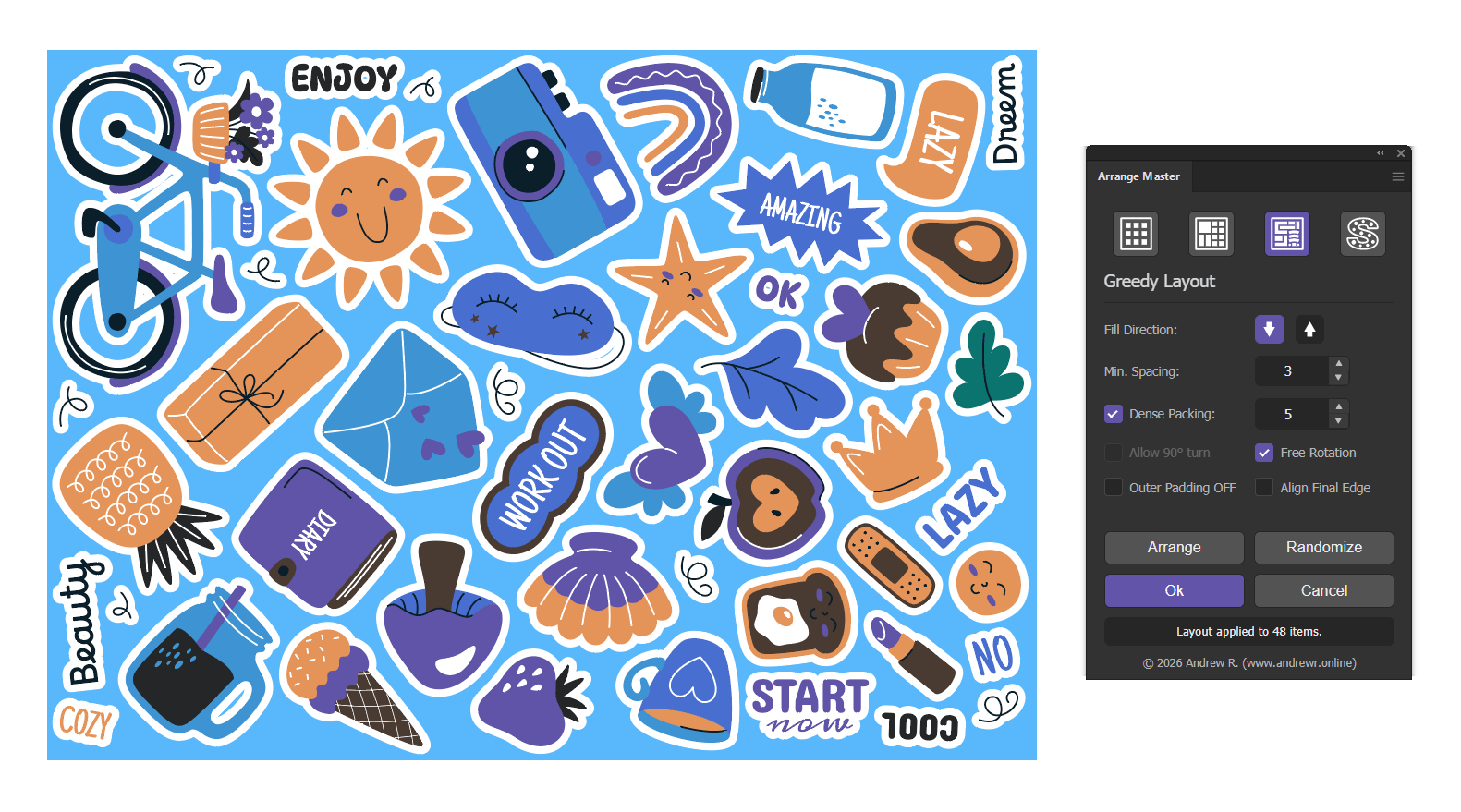
Choosing the Generation Count
The Evolution Stepper controls how much search effort is spent comparing placements. It is a practical tuning control, not a guarantee of the mathematical optimum.
- Start with 1–3 generations, especially for a large or complex selection.
- Check placed item count, spacing, and unused space. Increase the value if the result warrants a longer calculation.
- Compare gravity, rotation, and container dimensions as well as generation count. If additional generations make little difference, a different setting may help more.
For hundreds of detailed objects, test a representative sample first. Stable-looking results do not prove that the best possible arrangement has been found.
Performance and Repeated Runs
- Memory use: large containers and detailed contours require more memory. Internal geometry resolution can be adjusted for large jobs, but this does not remove practical memory limits. Inspect small gaps at the intended output scale.
- Geometry cache: repeated calculations can reuse geometry from the current session. Placement and applying the result still take time; edits that change the geometry may require new preparation.
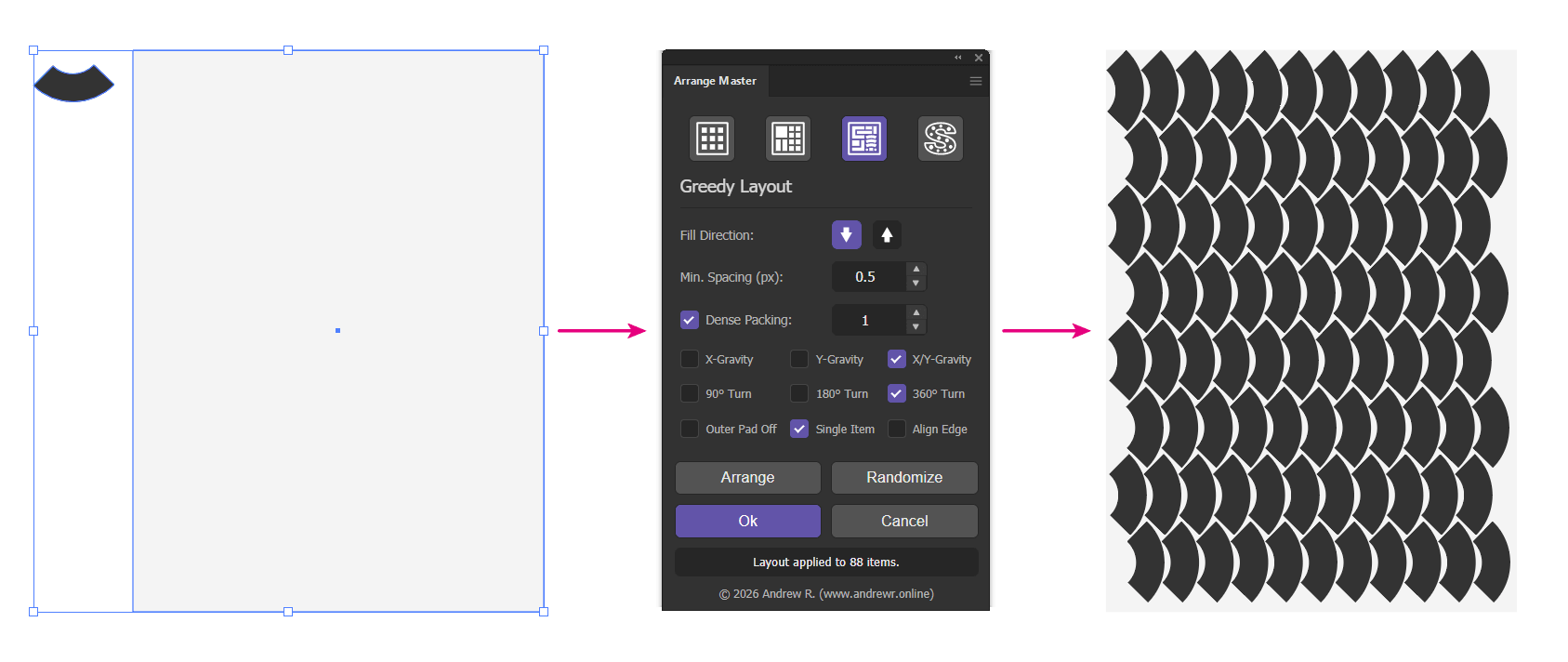
Single Item Fill in Dense Packing
Single Item Fill creates copies of one source item and places them in the selected container. In Greedy Layout, the container is rectangular. In Shape Respect Layout, it can be a container of arbitrary shape.
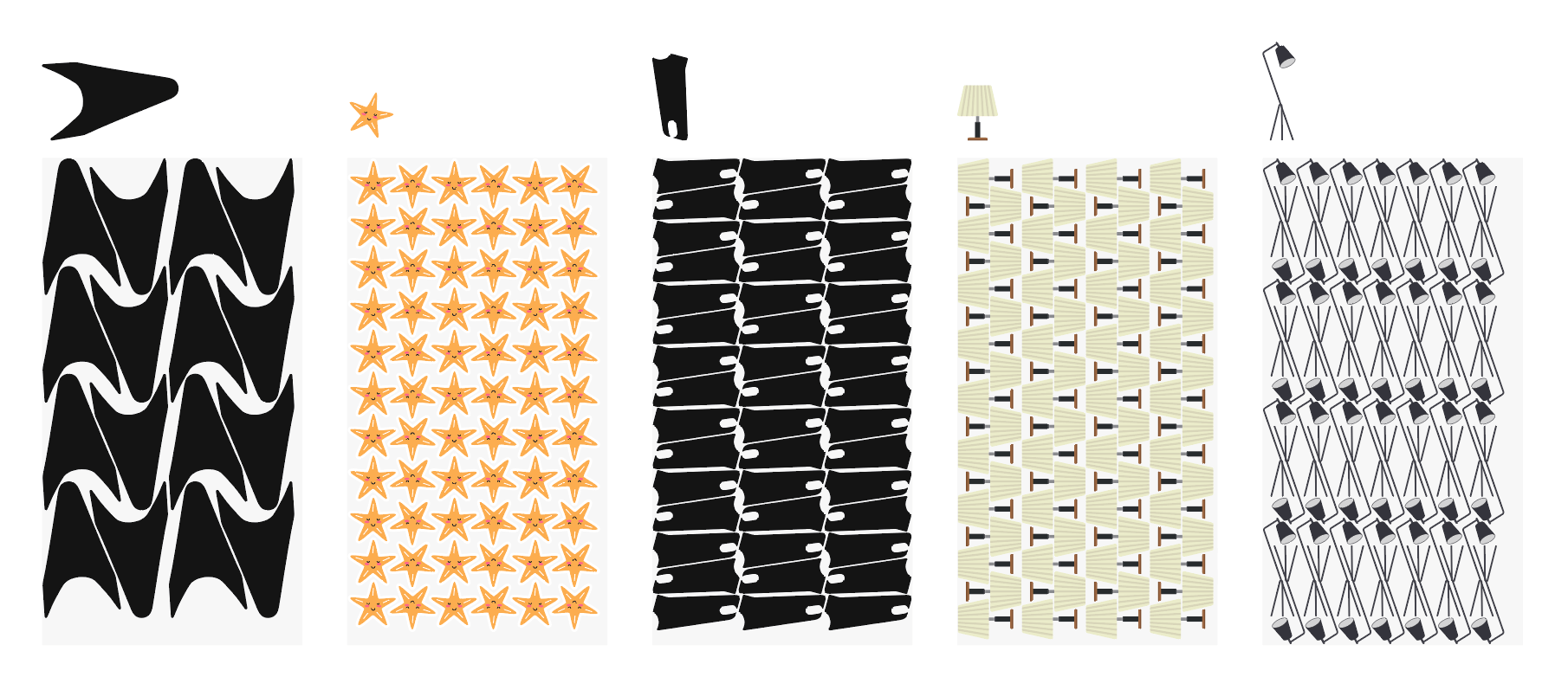
The source item passes through a morphological filter: the engine evaluates its outline to choose a suitable repetition pattern. The final arrangement depends on the object's shape as well as Min. Spacing, rotation settings, gravity vector and the container size. Different shapes can produce aligned rows, staggered arrangements or interlocking placements instead of chaotic filling.
- Select the container and the source item.
- Choose Greedy Layout or Shape Respect Layout, then enable Dense Packing/Single Item.
- If you need to arrange copies of a raster object, select the corresponding mode in Grid Layout.
- Set Min. Spacing and the rotations permitted for the item.
- Click
Arrange. Keep the result withOKor restore the original item withCancel.
Grid Layout
Divides the container into a structured grid, centering items within designated cells. Ideal for object sets and icon sheets.
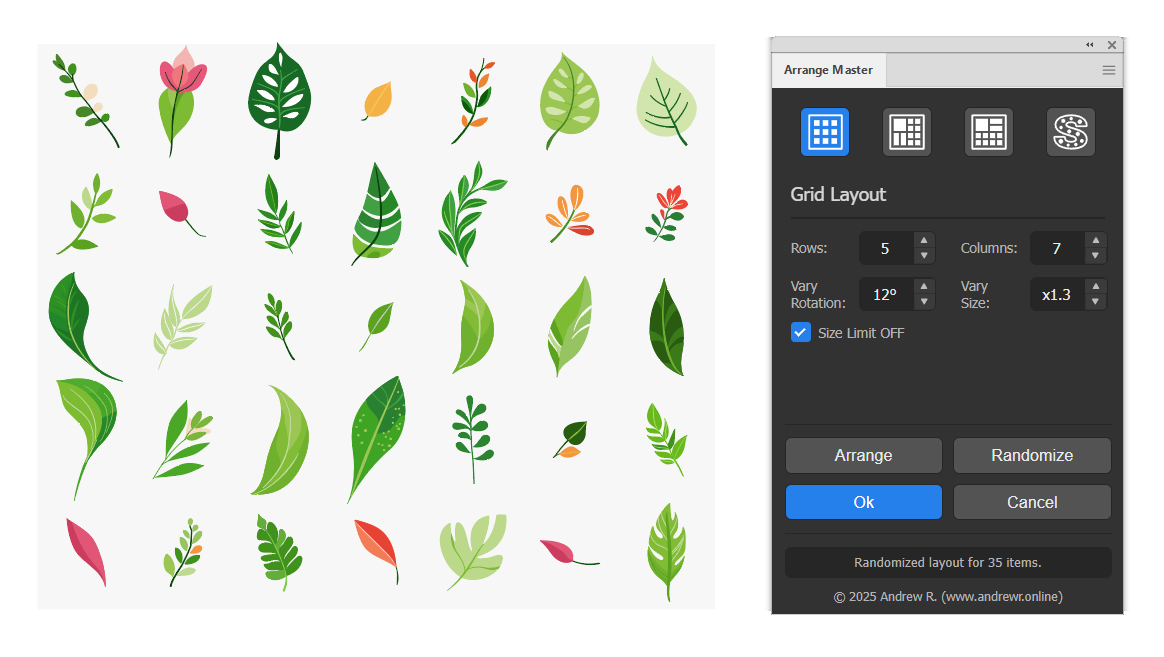
Standard Settings:
- Rows & Columns: Defines the dimensions of the grid.
- Vary Rotation: Adds randomness by rotating each item (e.g.,
90°rotates between -90° and +90°). - Vary Size: Randomly scales each item. A value of
x2scales between x1 and x2. - Offset Odd/Even Rows: Creates a staggered, "checkerboard" pattern.
- Size Limit OFF: By default, items larger than a grid cell are considered "overflow". Check this to force large items into the grid, centering them in their respective cells.
- Square Cells: Overrides proportional cell mapping, forcing cells into perfect squares and mathematically centering the resulting grid within the parent container.
Special Mode: Single Item Fill
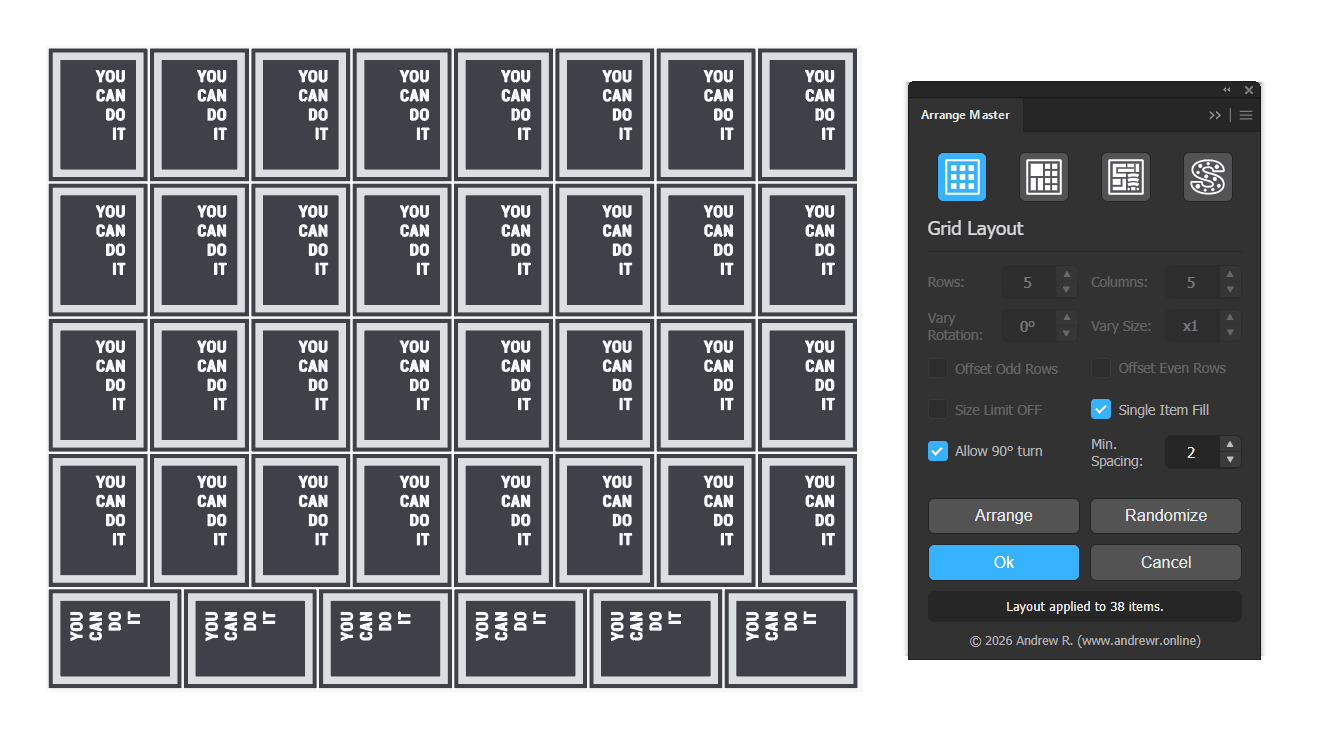
When the Single Item Fill checkbox is enabled, the panel switches to a specialized mode. Instead of arranging a selection of different objects, it calculates the maximum capacity and fills the container with copies of one selected item.
Common mistake: If Arrange Master unexpectedly creates many new copies, turn Single Item Fill off. This behavior is intentional and is not the normal multi-object arrangement workflow.
- Spacing: The distance between duplicated items (allows
0). - Allow 90° turn: Allows the item to be rotated orthogonally to maximize capacity.
Knolling Layout
Based on the "Maximal Empty Rectangles" algorithm, this method packs bounding boxes efficiently. It places large items first, then executes a second pass to fill remaining cavities with smaller details.
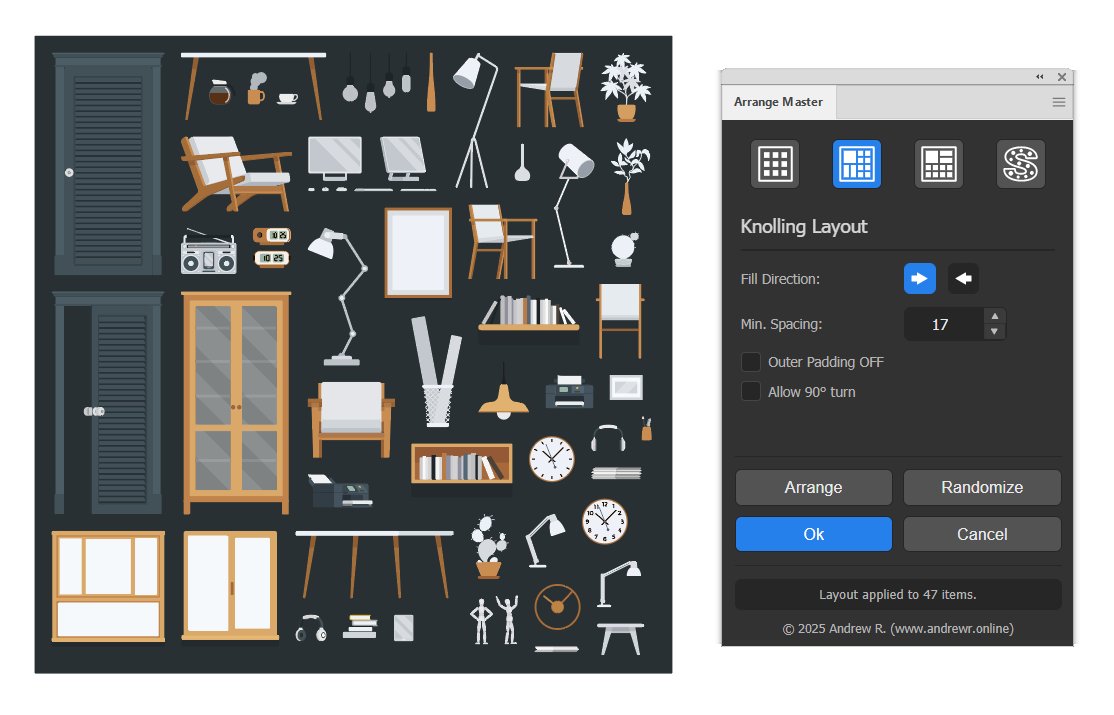
Settings:
- Fill Direction: Sets the primary horizontal packing flow (
Left-to-RightorRight-to-Left). - Min. Spacing: The minimum distance guaranteed between items.
- Fit to Container: Automatically solves a quadratic equation to scale your items proportionally so they exactly fill the container's usable area.
- Efficiency Factor: (Active when "Fit to Container" is ON). Determines how tight the scaling calculation should be (0.75 - 1.00).
- Outer Padding OFF: Disables padding between items and the container's edge.
- Allow 90° turn: Allows orthogonal rotation for a better fit.
Greedy Layout
A high-speed packing method that places items into the first available position based on their bounding box perimeters.
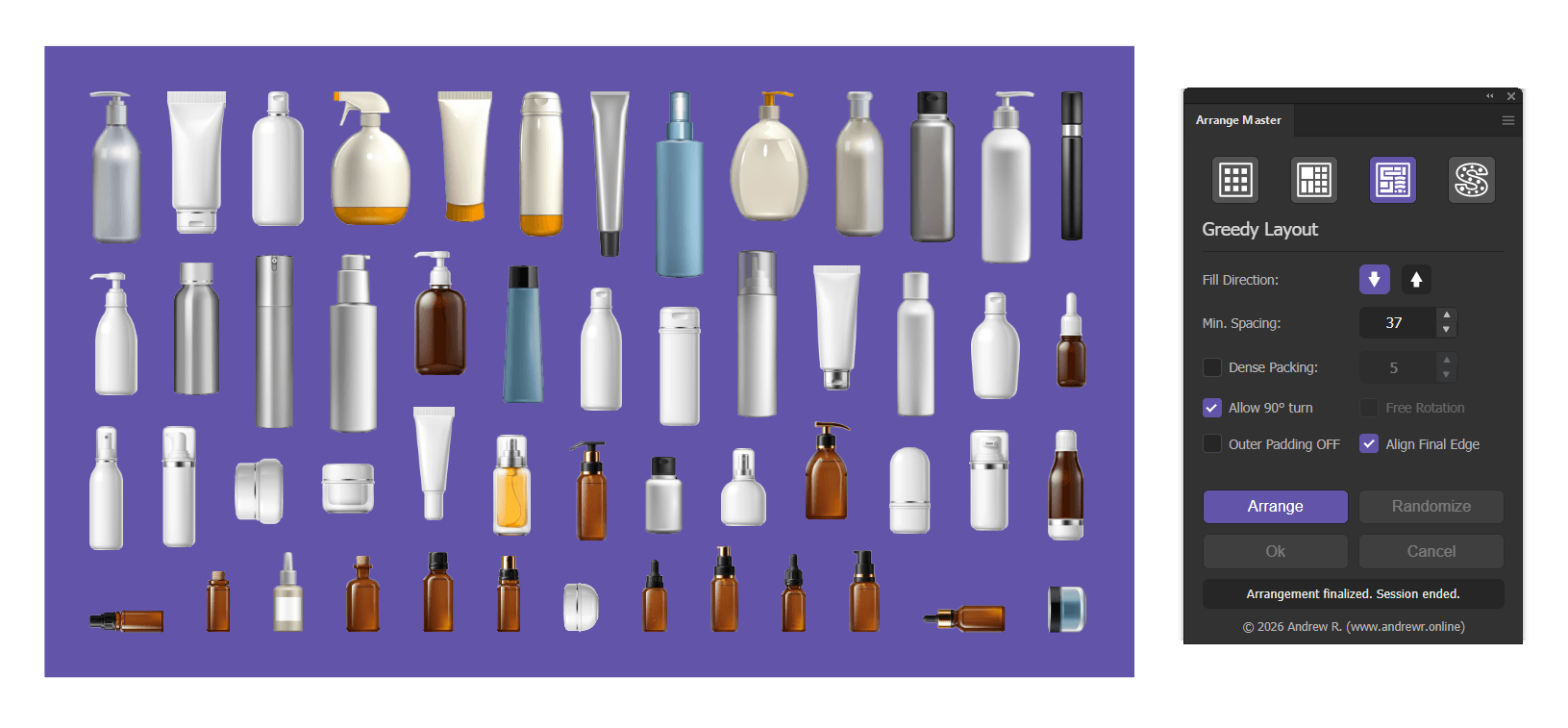
Settings:
- Fill Direction: Sets the vertical packing priority (
Top-DownorBottom-Up). - Min. Spacing: Distance between items.
- X-Gravity / Y-Gravity / X/Y-Gravity: Controls the compaction direction. X/Y-Gravity combines compaction in both directions.
- Rotation (90° / 180° / 360°): Enables orthogonal, flipped, or free rotation. Note: 180° Turn and 360° Turn require Dense Packing to be active in this mode, as they provide no mathematical benefit to static bounding boxes.
- Outer Pad Off: Disables container edge padding.
- Single Item: Calculates bounds and fills the container with copies of a single selected item. Unplaced copies are automatically deleted to keep the artboard clean.
- Align Edge: Executes a recursive accordion stretch to align the ragged perimeter of the final layout.
Shape Respect Layout
Supported containers: closed Paths, Compound Paths, groups of supported closed contours, and clipping groups, including supported compound clipping masks. Holes and overlapping group components are accounted for. Grouping alone is no longer a reason to ungroup the container.
This layout operates inside custom vector shapes, such as outlined letters, angled polygons, or containers with holes and islands. In ordinary Accurate mode (triggers when Dense Packing is disabled), each item’s bounding rectangle must fit within the valid area. Dense Packing uses the item’s contour for a closer fit. The selected container shape is retained; automatic working-height reduction is not applied.
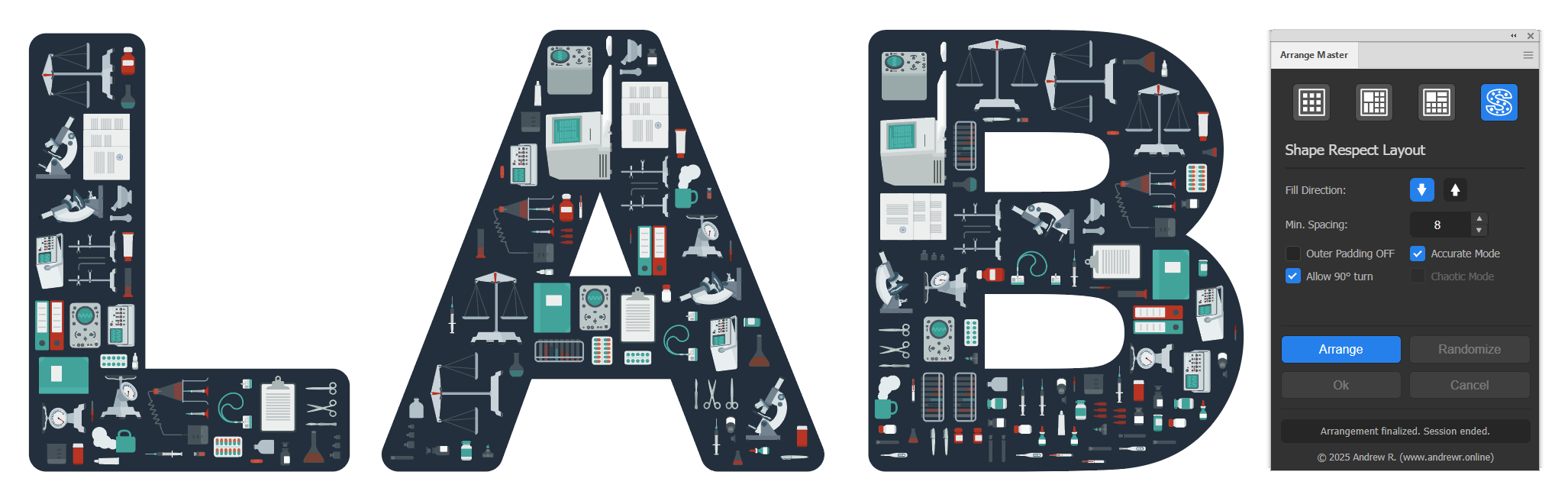
Settings:
- Fill Direction:
Top-DownorBottom-Upplacement priority. - Min. Spacing: Gap distance.
- X-Gravity / Y-Gravity / X/Y-Gravity: Controls the pull direction during collision calculations.
- Rotation (90° / 180° / 360°): Evaluates orientations during placement. Note: 180° Turn requires Dense Packing. 360° Turn is supported natively in both Bounding Box and Dense Packing modes.
- Outer Pad Off: Disables edge margins.
- Single Item: Fills the custom container geometry with copies of one selected item. Unplaced copies are deleted.
- Chaotic: Creates random placement in ordinary Accurate mode. Handling and uses the valid container area. Chaotic mode is separate from Dense Packing.

Overflow Placement: Handling Unplaced Items
If an item cannot fit inside the container, it is processed as an "overflow" item.
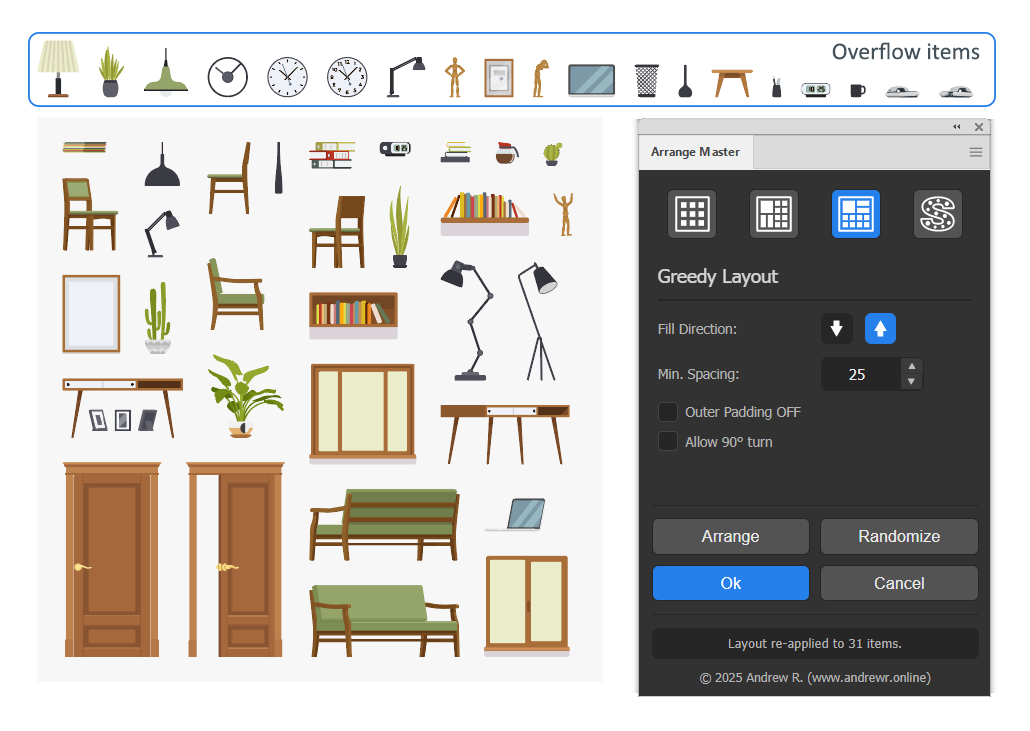
Overflow items are placed in a structured block directly above the container. They are arranged according to these rules:
- They are sorted by height, from tallest to shortest.
- They wrap to a new row once they reach the width of the main container, preventing infinite horizontal lines.
- A consistent spacing is maintained vertically and horizontally.
To fit remaining items, increase the container size, lower the "Min. Spacing", or activate Dense Packing, then click Arrange again.
Best Practices & Troubleshooting
To ensure reliable nesting results and prevent production delays, review the operational rules, preflight checklist, and diagnostic solutions below.
Production Preflight Checklist:
Work through these verification steps before sending nested layouts to cutting or printing:
- Document Safety: Always save your Adobe Illustrator document prior to initiating heavy nesting runs.
- Method Verification: Verify that the active panel corresponds to your production requirements (Grid, Knolling, Greedy, or Shape Respect).
- Single Item Fill Status: Ensure Single Item / Single Item Fill is turned OFF when arranging multi-object jobs. This mode deliberately creates duplicates to calculate maximum capacity.
- Check the container: the intended boundary must be the largest selected object. Shape Respect accepts the supported paths, compound paths, groups, and clipping groups described above.
- Collision Contour Integrity: Dense Packing evaluates closed vector path data. For stickers, CNC, and laser cutting, verify that each item possesses a closed outer cut line free of stray points and unexpanded strokes.
- Ruler Units & Spacing: Confirm that the displayed
Min. Spacingmetric matches active document ruler units before starting large calculations. - Rotation Constraints: Select 180° Turn when directional material properties (fabric grain, brushed aluminum, lenticular media) prohibit 90° quarter-turns.
- Representative Batch Testing: On large production runs (hundreds of items), test 10–20 sample objects first to verify clearances, Z-order, and layer restoration.
Vector Geometry & Collision Integrity:
- Dense Packing Collision Rules: Collision analysis evaluates mathematical path geometry, not visual raster appearance. Open cut strokes, unexpanded typography, decorative paths, or bleeding raster images inside a clipping mask do not act as safety boundaries unless accompanied by a closed outer vector contour.
- Clipping Mask Evaluation: Arrange Master reads the true visible boundary of clipping masks, ignoring bleeding artwork outside the mask perimeter. If parts appear misaligned, ensure the clipping path itself is a clean, closed shape.
- Problematic Geometry: Avoid using groups containing live Opacity Masks or Gradient Meshes as containers or primary items. The Illustrator API misreports coordinates for these elements. Expand them to standard vector paths before nesting.
Session Workflow & Interactive Container Control:
- The Container as an Active Piston: The container is a dynamic boundary tool. Narrowing the container width and clicking
Arrangeincreases transverse pressure, pushing parts into internal cavities. Expanding the container relaxes pressure and allows dense clusters to disperse. - Canvas Interactivity: While a session is active, the Illustrator canvas remains interactive. You can zoom, pan, inspect clearances, or manually adjust container dimensions. Clicking
Arrangeimmediately recalculates the layout with updated parameters. - Automatic Container & Z-Order Management: The plugin identifies the object with the largest visual area as the container and sends it to the back of the layer stack automatically, keeping nested items visible on top.
- Finalizing via OK and Cancel: A session must be concluded deliberately. Clicking
Okremoves original hidden items and commits working instances to their native layers. ClickingCanceldiscards working instances and restores original artwork to its exact initial coordinates.
Heuristic Optimization & Parameter Guidance:
- Heuristic Stepping: Dense Packing uses a genetic algorithm heuristic. Higher generation counts provide more search opportunities but do not guarantee monotonic improvement on every individual run. For high-value materials, run several passes and select the densest layout.
- Escaping Local Optima: If a layout stops improving at 10–15 generations, change boundary constraints: toggle between X-Gravity and Y-Gravity, enable X/Y-Gravity, or adjust container width slightly. This resets coordinate limits and allows the engine to discover new packing structures.
Technical Troubleshooting & Diagnostics:
- Blank Panel on macOS: A blank extension panel is typically caused by macOS Gatekeeper quarantine flags or missing PlayerDebugMode permissions. Quit Illustrator, open Terminal, and execute the following command:
for v in {8..20}; do defaults write com.adobe.CSXS.$v PlayerDebugMode 1; done && killall -u `whoami` cfprefsd && sudo xattr -cr ~/Library/Application\ Support/Adobe/CEP/extensions/ && sudo xattr -cr /Library/Application\ Support/Adobe/CEP/extensions/ && rm -rf ~/Library/Caches/CSXS/*
- Blank Panel on Windows: Close Illustrator and reinstall Arrange Master using the provided Windows setup executable, which applies the required registry settings. If you installed an unsigned copy manually, open Registry Editor and navigate to
HKEY_CURRENT_USER\Software\Adobe\CSXS.<version>, replacing<version>with the CEP version used by your Illustrator installation. Create or edit the string valuePlayerDebugModeand set it to1, then restart Illustrator. This setting bypasses extension signature checks for unsigned extensions; it is not a general requirement for correctly signed ZXP packages. - Activation & Startup Errors (EACCES / ECONNREFUSED): Check the error code and any file path or connection address included in the message:
- EACCES — Access denied: Check whether the error identifies a local file or folder. Confirm that your user account has the required read or write access to that location, and review antivirus protection history for blocked operations. If the affected path belongs to the Arrange Master installation, close Illustrator and reinstall the plugin using the provided installer. Changing networks will not resolve a local file permission problem.
- ECONNREFUSED — Connection refused: Check whether a firewall, proxy, or local security application is refusing the connection. On Windows, allow network access for
Illustrator.exeandCEPHtmlEngine.exewhere required. - Proxy configuration: If using a proxy client such as Clash or V2Ray, confirm that it is running and accepts connections at the configured address and port. If application traffic is not routed through the proxy, temporarily test Global Mode or TUN Mode (Virtual Network Adapter).
- Network isolation: For connection errors, temporarily try a mobile hotspot to determine whether the problem is specific to the current network. If the error persists, contact support with the complete error message, your operating system, and Illustrator version.
- Shape Respect rejects or misreads a container: confirm it is the intended largest selected object and inspect its closed contours, holes, and clipping mask. Remove unrelated hidden or stray components. Shape Respect Layout supports groups; convert to a clean Compound Path only when simplifying the file is useful, not as a mandatory step for every group.
- Document Units Display Issue: If ruler units are changed in Illustrator while the panel is open, close and reopen the Arrange Master panel to re-synchronize display labels.
- Purchase, Key, or Invoice Inquiries: Check Spam/Junk folders for order emails. If a license key or download link is missing, contact support at info@andrewr.online with your checkout email, purchase date, and payment confirmation. Include business billing details if a formal invoice is required.
Prepress Splitter Script
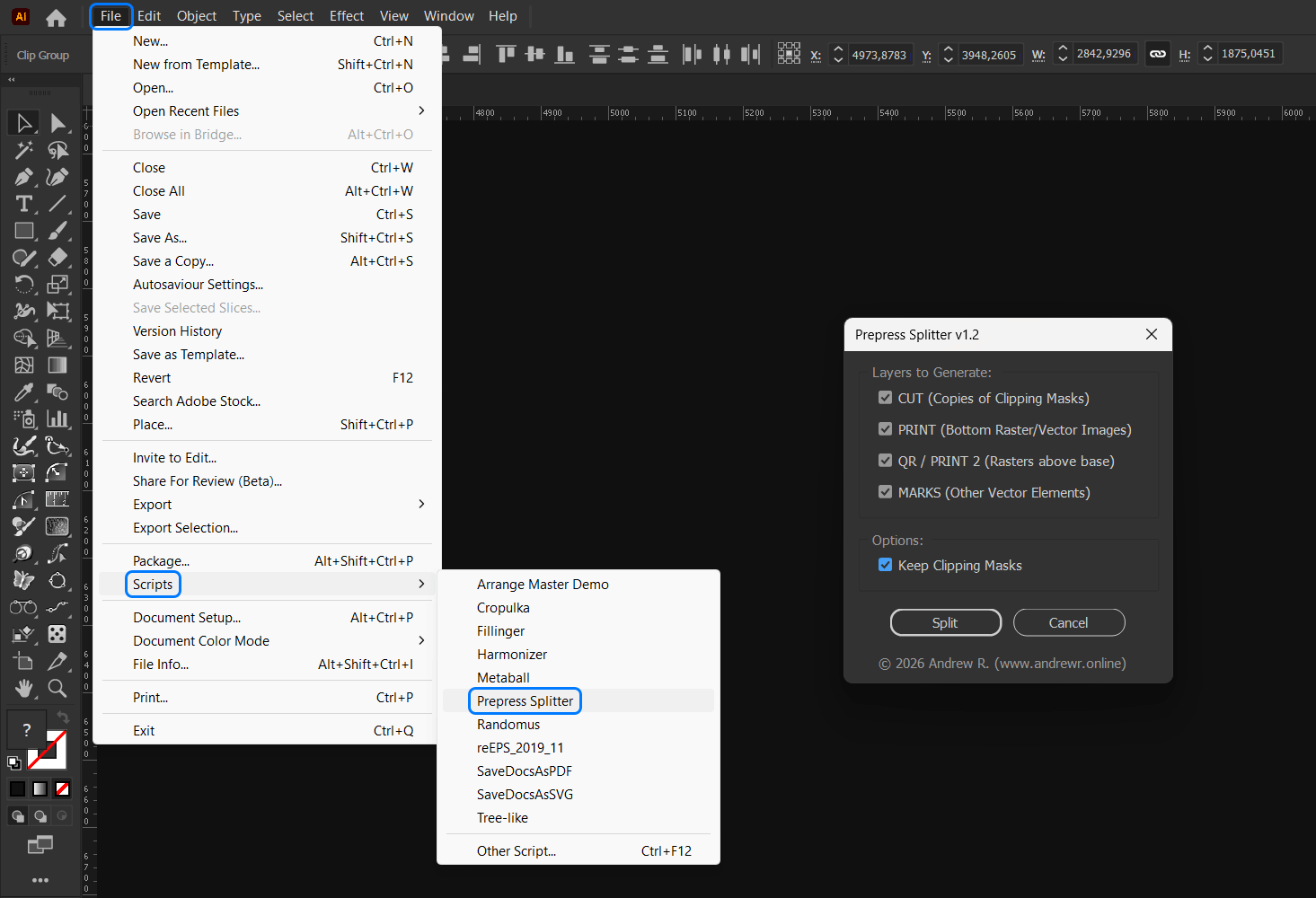
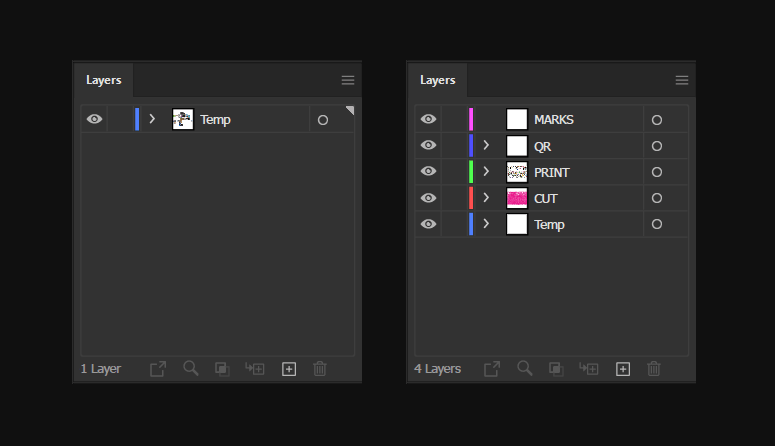
The Prepress Splitter.jsx is a specialized script designed to bridge the gap between automated nesting and wide-format printing production. It distributes nested components into dedicated layers based on object type and Z-order.
Layer Distribution Logic
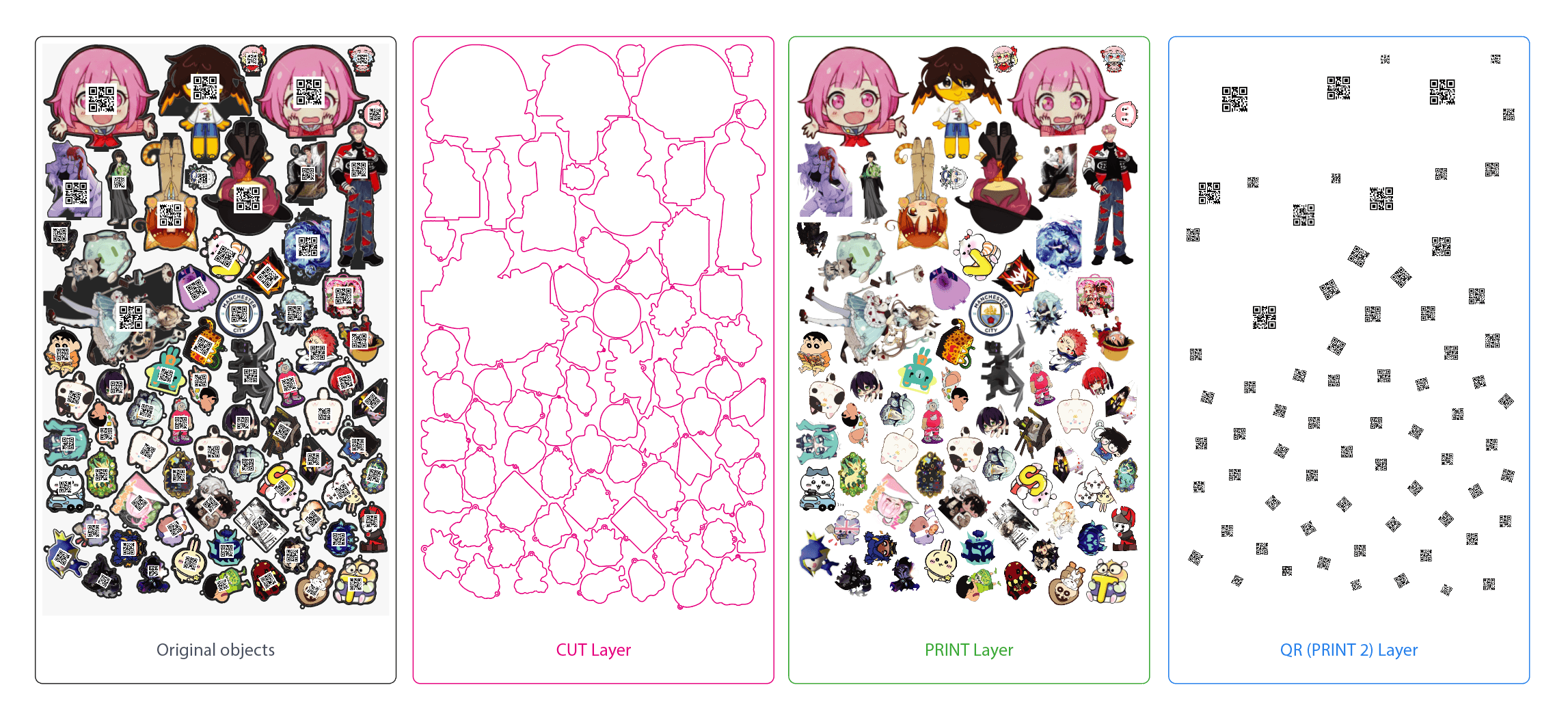
- CUT Layer: Identifies the primary vector clipping mask of each group and duplicates it as a non-clipping path with a 100% Magenta (E6007E) 1pt stroke. Deep mask cleaning ensures Compound Paths are styled correctly.
- PRINT Layer: Collects the base (bottom-most) raster image. Note: If a sticker is purely vector-based with no rasters, the script executes a Vector-Only Merge (Live Pathfinder Add) to generate the CUT contour, and sends the original vectors to this PRINT layer.
- QR Layer (PRINT 2): Collects all raster elements stacked above the base image, supporting multiple QR codes, spot varnishes, or floating rasters.
- MARKS Layer: Collects auxiliary vector elements that are not clipping masks.
How to Use
- Group your design (raster/vector), cut line (clipping mask), and marks into individual sticker groups.
- Nest the groups using Arrange Master and click Ok.
- Select the nested groups, go to
File > Scripts > Other Script..., and runPrepress-Splitter.jsx. - Select the required layers. Check "Keep Clipping Masks" to preserve strict mask boundaries on raster print files.
Changelog
Version 1.5.0 (September 12, 2026)
Major architectural and algorithmic update.
- Dense Packing: Updated contour analysis and gravity-based compaction in Greedy and Shape Respect layouts.
- Greedy Layout: Added working-height reduction during X or Y-Gravity searches to reduce unused space in rectangular layouts.
- Single Item Fill: Copies of the same object are now arranged according to the shape of the original object, choosing the best packing order.
- Shape Respect: Added support for different types of containers: Compaund Path, Clipping Mask, groups of objects, including containers with holes and separated subpaths.
- 360° Turn: Angle adjustments are now triggered only when spatial interlocking requires it to achieve tighter nesting.
- Interface: Updated the Min. Spacing stepper to use increments between 1 and 0.01 in the current document units. The same steps apply when increasing or decreasing the value.
Version 1.4.6 (September 8, 2026)
Maintenance update.
- Clipping Mask Contour Fix: Resolved an issue where artwork hidden under clipping masks caused contour inflation during complex object silhouette generation.
Version 1.4.5 (July 21, 2026)
Maintenance update.
- Disjointed Compound Paths Fix: Rebuilt polygon parsing logic to handle compound paths with physically separated subpaths, resolving overlapping and geometry distortion issues.
- Multi-Layer Single Item Support: Adjusted the validation order to allow Single Item Fill on artwork split across multiple layers (e.g., PRINT and CUT layers).
Version 1.4.4 (July 16, 2026)
Feature expansion update.
- Dual Gravity Checkbox: Added the "X/Y-Gravity" checkbox for direct access to dual gravity vectors.
- 180° Rotation: Added additional rotation option - "180° Turn" for upside-down placement.
- Single Item Fill Expansion: Added the "Single Item" fill mode to Greedy and Shape Respect layouts.
Version 1.4.3 (July 8, 2026)
Maintenance update.
- Offline Focus: Removed the weekly automatic background license and core algorithm verification.
- Check for Updates: Added a "Check for Updates" command to the flyout menu. This allows users to manually fetch the latest version of the core engine algorithm.
- Onboarding Guide: Added a non-intrusive tip-window to explain the relationship between "Dense Packing" and the "Evolution Stepper" during the first panel startup (active in both full and demo versions).
Version 1.4.2 (June 30, 2026)
Maintenance update.
- Unit Conversion Fix: Resolved an issue where the "Min. Spacing" parameter was incorrectly processed as points (pt) regardless of the document's active ruler units.
Version 1.4.1 (June 20, 2026)
Maintenance update.
- Performance Optimization: Resolved critical speed degradation in documents containing 1000+ objects during
Arrange,Randomize,OkandCanceloperations.
Version 1.4.0 (June 15, 2026)
Major architectural and mathematical update introducing cloud integration and advanced nesting heuristics.
- Cloud Engine & Authentication: Introduced a secure Chromium Math Engine. Accessing Dense Packing algorithms now requires an active internet connection and a verified personal license key.
- Separated Gravitation Vectors: Replaced standard sequential filling with independent X-Gravitation and Y-Gravitation vectors, allowing precise directional packing controls.
- Genetic Algorithm: Replaced Analysis Precision with the Evolution Stepper (1-50). The nesting algorithm now mathematically mutates and evolves placement sequences over multiple generations to discover maximum density.
- Grid Layout "Square Cells": Added a constraint toggle to force proportional grids centered automatically within the parent container.
- Adaptive Memory Lock: The math engine automatically scales down RLE-matrix resolution when calculating massive artboards (e.g., > 5000pt), permanently resolving out-of-memory crashes while strictly enforcing minimum spacing rules.
- Asynchronous Optimization: The calculation queue has been exposed to the UI thread, allowing users to abort long packing processes using the Cancel button.
Version 1.3.2 (June 5, 2026)
Maintenance update.
- Align Final Edge Overhaul: Rebuilt the alignment system. The algorithm now calculates dependencies between items based on their vertical "footprint" and horizontal line-of-sight.
- Recursive "Accordion" Stretch: Implemented a recursive push calculation. This logic ensures that nested or interlocking items move as synchronized clusters, maintaining their relative positions while stretching the ragged edge toward the container boundary.
Version 1.3.1 (May 27, 2026)
Maintenance improving prepress automation.
- Multi-Layer Retention: Added full native support for preserving layer structures (e.g., CUT, PRINT, QR layers) during and after arrangement across all algorithms.
Version 1.3.0 (May 10, 2026)
Major architectural update focusing on performance and precision.
- Shape Respect True-Shape Support: Dense packing is now natively supported within custom non-rectangular containers, wrapping around isolated internal cavities and holes.
- Chromium Engine Offloading: Shape Respect (Accurate Mode) and Dense Packing mathematics are now fully processed in the Chromium Engine, increasing speed exponentially for complex documents.
- True-Shape Nesting Upgrade: Replaced bounding box optimization with a Euclidean Bin Packing system for small batches (<50 items), achieving mathematically perfect interlocking geometry.
- UI Enhancement: Introduced dynamic theme color coding linked to active layout panels.
Version 1.2.4 (April 20, 2026)
Maintenance update.
- Overflow Wrapping. Overflow items no longer form a single infinite line that exceeds Illustrator's canvas limits. They now wrap to new rows (forming a compact block) based on the container's width, making it much easier to select and manage unplaced items.
- Silhouette Recognition. Speed boost for complex vector groups (e.g., Image Trace results). Dense Packing now automatically filters out thousands of internal micro-paths and "enclosed" details to focus strictly on the object's outer contour, preventing long freezes and crashes.
Version 1.2.3 (April 17, 2026)
Maintenance performance and precision update.
- Architecture Upgrade: Chromium Math Engine. Dense Packing calculations have been moved to the high-performance background engine. This provides a massive speed boost, especially when arranging hundreds of objects.
- Improved Clipping & Compound Mask Support. Resolved coordinate shifts in complex masks and fixed issues where hidden content affected the layout density of Compound Path masks.
- Target Layer Protection. Fixed the "Target layer cannot be modified" error. Temporary groups are now strictly created on the layer containing your selection, even if other layers are locked or hidden.
- Global Input Support. All numeric fields now support both dot (
.) and comma (,) as decimal separators for better international usability.
Version 1.2.2 (March 31, 2026)
Maintenance update.
- Dense Packing Optimization. Improved packing density and more accurate response to "Min. Spacing" settings.
Version 1.2.1 (March 19, 2026)
Maintenance update.
- Universal Clipping Mask Support. All arrangement methods (Grid, Knolling, Greedy and Shape Respect) now correctly process objects with Clipping Masks. The engine no longer considers hidden elements outside the mask area, focusing strictly on the mask's true bounding box.
Version 1.2.0 (March 1, 2026)
Major update featuring entirely new mathematics, real-time UI feedback and intelligent scaling.
- New Feature: Visual Progress Bar. The Status Bar now features a smooth, animated background progress filler. Long operations like Dense Packing now provide clear visual feedback that the engine is working.
- New Feature: "Fit to Container". Knolling Layout now includes a math engine that solves a quadratic equation to scale your items up or down to fill 100% of the container's usable area, automatically accounting for Min. Spacing. Includes a dynamic "Efficiency Factor" stepper (0.75 - 1.00) for tight control over the scaling aggressiveness.
- New Feature: Free Rotation (360°). Dense Packing now supports true arbitrary rotation. The algorithm evaluates 24 different angles (15° steps) for every single item to achieve maximum density.
- Architecture Upgrade: True-Shape Engine v2. The Dense Packing algorithm has been entirely rebuilt:
- Math Engine Rasterization: Completely bypasses Illustrator's infamous bounding box inflation bug. Objects are now rotated mathematically in memory, ensuring contour hugging without false collisions.
- Two-Pass Placement: The system now acts like an intelligent mason: Pass 1 places large objects to build the structural landscape, and Pass 2 executes a search to pour tiny objects into the remaining gaps.
Version 1.1.2 (November 22, 2025)
This update focuses on maximizing packing density, refining algorithm precision, and unifying rotation logic for Dense Packing.
- Dense Packing Optimization & Quality Boost. The True-Shape nesting engine received a major upgrade. Geometry decomposition now merges adjacent sectors, speeding up calculations by 5-10x. The "Safety Valve" has been removed, ensuring the algorithm always performs a full-quality analysis regardless of complexity.
- Enhanced Rotation Logic. The "Allow 90° turn" feature now evaluates three orientations (0°, 90°, and 270°) instead of just two, providing better fitting opportunities in Dense Packing.
- Grid Layout Fixes. Fixed a coordinate drift issue where objects would shift visually when using "Size Limit OFF" combined with large "Vary Size" values. Scaling now occurs relative to object centers to ensure perfect alignment.
- Raster & Placed Item Support. Fixed "Select at least 2 objects" errors when working with images. The plugin now includes fallback mechanisms to correctly detect bounds for Raster and Placed items.
Version 1.1.1 (October 17, 2025)
This is a major update focused on radical algorithm improvements, new features, and overall stability.
- Complete Overhaul: Dense Packing Algorithm. The true-shape nesting engine has been rewritten. It now uses a "Global Free Space Analysis" architecture, allowing it to see and utilize not only holes inside objects but also the complex empty spaces that form between multiple objects.
- New Feature: Dynamic Simplification. The Dense Packing algorithm is now equipped with a safety valve that detects and prevents computational explosions. This makes the algorithm more stable, eliminating freezes even on complex layouts or with high 'Analysis Precision' settings.
- New Feature: Single Item Fill. The Grid Layout panel now includes a special mode to fill the container with copies of a single selected item, using the Skyline algorithm for a dense pattern.
- New Feature: Staggered Grid Offsets. The Grid Layout now includes "Offset Even/Odd Rows" options to create staggered, checkerboard-style patterns.
Version 1.0.1 (October 10, 2025)
This update focuses on adding new features for organic layouts and significant performance optimizations.
- New Feature: Dense Packing ("True-Shape Nesting"). The Greedy Layout now includes an advanced mode that analyzes the true vector shape of objects, allowing for tight packing that fills concave areas.
- New Feature: Analysis Precision. A new control for Dense Packing that allows users to balance performance versus packing quality.
- New Feature: Align Final Edge. An optional post-processing step for Greedy and Dense Packing modes to clean up the final "ragged" edge of the layout.
- New Feature: Vary Rotation for Shape Respect. The Shape Respect layout now includes a "Vary Rotation" setting to add organic randomness to placements inside complex shapes.
- Optimization: The Dense Packing algorithm caches the complex geometry analysis. Subsequent clicks on "Arrange" or "Randomize" within the same session are now significantly faster.
Version 1.0.0 (September 15, 2025)
- Initial public release.
- Introduced the four core layout methods: Grid, Knolling, Greedy, and Shape Respect.
- Established the robust session-based workflow with "Ok" and "Cancel" states to protect user's original artwork.
- Implemented basic controls for each layout method, including spacing, rotation, and fill direction.